Top 10 Free Adobe Alternatives for Creative Professionals in 2026
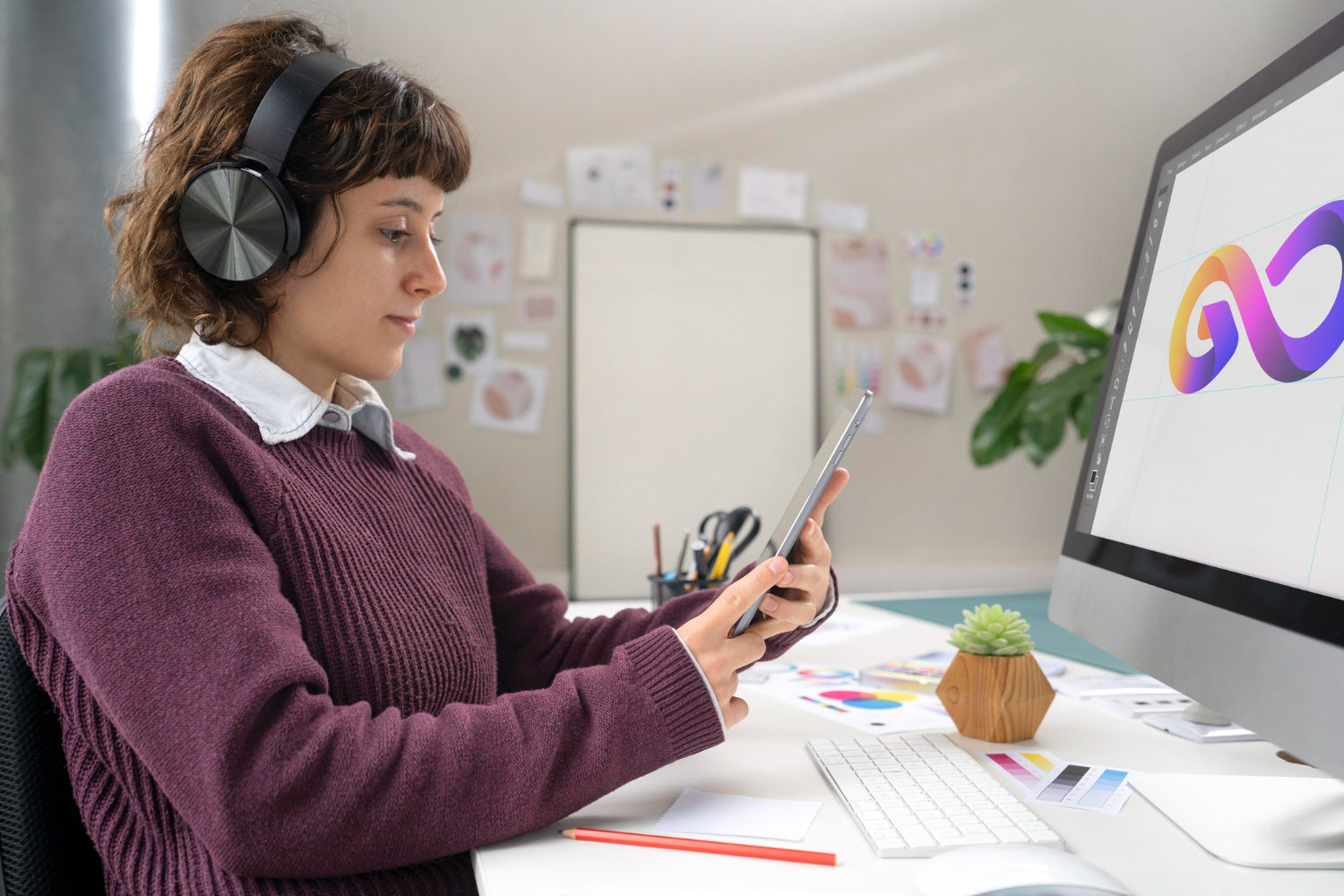
Adobe’s subscription model made a lot of sense when Creative Cloud launched. It also means the meter never stops running, and for a freelancer, small studio, or hobbyist doing occasional creative work, paying a recurring fee for software used a few hours a week stops making financial sense fast. The good news is that every major Adobe application now has at least one genuinely capable alternative, and several of them cost nothing at all.
One-Time Purchase vs. Free and Open Source
The alternatives below split into two distinct camps, and picking the right one depends less on budget alone and more on how much time you’re willing to invest in learning a new interface. One-time purchase software like Affinity gives you something close to a drop-in Adobe replacement: professional results, familiar-feeling tools, file format compatibility with PSD and AI files, for a single payment instead of an ongoing subscription.
Free and open-source tools like GIMP, Inkscape, and Blender cost nothing but generally ask more of you upfront. Interfaces differ meaningfully from Adobe’s conventions, tutorials assume less Adobe-specific knowledge, and getting to full productivity takes real time. Neither approach is wrong; it’s a genuine tradeoff between money and learning time, and being honest about which one you have more of shapes which alternatives are actually worth your time.
The Best Free Adobe Alternatives for Creative Professionals in 2026
1. Affinity Suite
Affinity Photo, Designer, and Publisher cover Photoshop, Illustrator, and InDesign respectively, and they’re the closest thing on this list to an actual Adobe replacement rather than a different tool that happens to do similar things. All three are one-time purchases, all three open and export PSD and AI files without the compatibility headaches that plague some competitors, and the interface, while not identical to Adobe’s, uses similar enough conventions that switching costs are lower than moving to a genuinely open-source tool.
Best for: Anyone wanting the closest experience to Adobe’s professional apps without the recurring subscription cost.
2. DaVinci Resolve
DaVinci Resolve’s free tier is genuinely startling in scope: professional color grading tools that rival dedicated grading software, a full editing timeline comparable to Premiere Pro, and Fusion, its compositing and visual effects engine that covers a meaningful chunk of what After Effects does. It’s built by Blackmagic Design, a company that makes its actual money on hardware, which is part of why the software itself is free rather than gated behind a subscription.
Best for: Video editors and colorists who want professional-grade tools without paying for Premiere Pro and After Effects combined.
3. GIMP
GIMP remains the most established free Photoshop alternative, with layers, masks, a substantial filter library, and an active plugin ecosystem that extends its capabilities considerably beyond what ships by default. The interface is the real learning curve here: GIMP’s conventions diverge from Photoshop’s in ways that take real adjustment, even for experienced Photoshop users. Once past that adjustment period, it handles the large majority of professional image editing tasks without issue.
Best for: Users willing to invest time learning a different interface in exchange for a completely free, capable image editor.
4. Inkscape
Inkscape is the closest free equivalent to Illustrator, a genuinely capable vector editor supporting SVG natively along with PDF, EPS, and AI import and export. Logo design, technical illustration, and print-ready vector work are all well within its wheelhouse, and because SVG is an open web standard rather than an Adobe-proprietary format, Inkscape’s native file handling is arguably more future-proof than working primarily in AI files ever was.
Best for: Vector illustration and logo work, especially for projects that will eventually need web-native SVG output anyway.
5. Scribus
Scribus covers InDesign’s territory: desktop publishing with real CMYK color support, spot color handling, and professional print-ready PDF export for magazines, brochures, and multi-page documents. It’s a narrower tool than the others on this list, built specifically for layout work rather than trying to be a general creative suite, which actually makes it easier to learn quickly for anyone whose need is specifically print layout rather than broader design work.
Best for: Print-focused desktop publishing where CMYK accuracy and professional PDF output matter more than general design flexibility.
6. Blender
Blender’s reputation for 3D modeling and animation somewhat undersells how much it now covers of what used to be exclusively After Effects territory: motion graphics, compositing, and video editing have all become genuinely capable parts of Blender rather than afterthoughts, with real improvement release over release. For anyone whose creative work is trending toward 3D or motion graphics anyway, learning Blender covers considerably more ground than a narrower 2D-only alternative would.
Best for: Creators working in or moving toward 3D, motion graphics, and compositing rather than pure 2D design.
7. Canva
Canva isn’t trying to compete with Illustrator on raw capability, and it shouldn’t be judged against that bar. What it does extremely well is templated, fast-turnaround design: social media graphics, presentations, marketing one-sheets, the kind of work where speed and a library of good starting points matter more than pixel-level control. For a small business or marketing team producing high volumes of straightforward graphics, Canva’s efficiency often beats a more powerful but slower tool.
Best for: Fast, template-driven design work like social graphics and presentations rather than custom illustration or complex layouts.
8. Figma
Figma has done something few tools manage: it didn’t just compete with Adobe XD, it effectively replaced it as the industry default for UI and UX design, to the point that Adobe itself eventually discontinued XD. The free tier is genuinely usable for individuals and small teams, and Figma’s real-time collaborative editing, multiple people working in the same file simultaneously, remains a meaningful advantage over most desktop-first design tools.
Best for: Interface and product design work, especially for teams that need real-time collaboration on the same files.
9. Krita
Krita was built specifically for digital painting and illustration from the ground up, rather than being a general image editor with painting features bolted on, and that focus shows in its brush engine, which remains one of the most respected free painting tools available. Concept artists and illustrators who tried GIMP and found its painting tools secondary to its photo-editing focus often find Krita a considerably better fit for that specific kind of work.
Best for: Digital painting, illustration, and concept art, where Krita’s brush engine outperforms general-purpose image editors.
10. Kdenlive
Kdenlive rounds out the video editing options as a lighter, more traditional NLE (non-linear editor) than DaVinci Resolve’s broader all-in-one approach, with solid multi-track editing, a real effects and transitions library, and cross-platform support across Linux, Windows, and Mac. For editors who want something closer to a straightforward timeline editor without Resolve’s additional color grading and compositing depth, Kdenlive covers the core editing workflow well.
Best for: Straightforward video editing without needing DaVinci Resolve’s more extensive color grading and compositing toolset.
Building a Complete Free Toolkit
A full Adobe Creative Cloud replacement, covering photo editing, vector work, layout, and video, realistically needs two or three tools working together rather than one single app trying to do everything. GIMP or Affinity Photo for raster editing, Inkscape or Affinity Designer for vector work, and DaVinci Resolve for video covers the large majority of what most creative professionals actually need day to day, at a fraction of Creative Cloud’s ongoing cost.
File compatibility between these tools and clients or collaborators still using Adobe software is worth checking carefully before committing fully. Affinity’s PSD and AI export is genuinely solid; GIMP and Inkscape’s compatibility with Adobe formats is good but occasionally imperfect on complex files with advanced features like certain blend modes or effects that don’t translate identically between programs. Test on a real client file before assuming a full workflow switch will be seamless.
The Learning Curve Question, Honestly
Switching tools after years of Adobe muscle memory is genuinely harder than software comparisons usually admit. Keyboard shortcuts differ, menu structures differ, and the small workflow habits built up over years don’t transfer directly, which means the first few weeks on a new tool will likely feel slower than Adobe did, even if the new tool is objectively just as capable once you’re comfortable with it.
Budgeting real time for that adjustment period, rather than expecting immediate parity, sets more realistic expectations and reduces the odds of giving up on a genuinely good alternative after a frustrating first week. Affinity’s Adobe-similar interface shortens this adjustment period considerably compared to GIMP or Inkscape, which is worth weighing against the cost difference if time is more scarce than money for your specific situation.
Two Realistic Workflow Scenarios
Picture a freelance graphic designer doing brand identity work, logos, brand guidelines, occasional print collateral, for small business clients a few times a month. Affinity Designer and Affinity Publisher cover essentially the entire workflow here, and the one-time purchase cost pays for itself within a handful of projects compared to an ongoing Illustrator and InDesign subscription. The Adobe-similar interface also means client-facing deliverables (open AI or PSD files a client’s other vendor needs) export cleanly without the compatibility anxiety that a fully open-source tool sometimes introduces for client-facing work specifically.
Now picture a solo YouTuber editing weekly video content: cuts, color correction, some motion graphics for lower thirds and transitions, nothing approaching a full VFX pipeline. DaVinci Resolve’s free tier handles this completely, color grading and basic motion graphics through Fusion included, without ever needing to touch Premiere Pro or After Effects at all. The only reason to eventually consider Resolve’s paid Studio tier is specific advanced features like certain noise reduction tools, not because the free tier is somehow crippled for standard content creation work.
Hardware Considerations Worth Knowing
Not every alternative performs identically on the same hardware, and it’s worth checking system requirements before assuming a switch will feel the same speed-wise as Adobe’s apps did. DaVinci Resolve in particular benefits considerably from a capable GPU, more so than Premiere Pro does for equivalent editing tasks, since Resolve’s color grading and Fusion compositing lean heavily on GPU acceleration. A machine that ran Premiere Pro comfortably won’t automatically run Resolve’s more demanding features at the same comfort level without adequate graphics hardware behind it.
Blender has a similar profile: 3D work and rendering scale directly with GPU capability, and a machine that struggled with After Effects’ more modest hardware demands may need a hardware upgrade to get comparable performance out of Blender’s expanded feature set. GIMP, Inkscape, and Scribus, by contrast, run comfortably on far more modest hardware than any of the video or 3D tools, since 2D raster and vector work simply doesn’t demand the same processing power.
Choosing the Right Alternatives for Your Workflow
For a complete, close-to-drop-in Adobe replacement, Affinity Suite covers photo, design, and publishing in one purchase, and DaVinci Resolve handles video without costing anything. If budget is the primary constraint rather than time, GIMP, Inkscape, and Blender deliver genuinely professional results for free, with the understanding that the learning curve runs steeper than Affinity’s more familiar interface.
Team and Collaboration Considerations
A solo creative can pick whatever tool fits their own workflow without much external constraint, but a team or agency has to weigh compatibility across everyone involved, not just personal preference. Figma solved this cleanly for UI design specifically, real-time collaboration that arguably beats what Adobe XD ever offered, but the equivalent doesn’t exist as cleanly for raster or vector work. Affinity’s apps support some collaborative features but nothing matching Figma’s live multi-user editing.
For a team currently split between Adobe and alternatives during a transition period, standardizing on interchange formats, PSD for raster work, SVG or AI for vector, PDF for layout, keeps files moving between team members regardless of which specific app each person uses day to day. This matters more during a gradual team-wide migration than picking one universal tool everyone has to use identically, since forcing an entire team onto unfamiliar software simultaneously tends to hurt productivity more than a staged transition with flexible file interchange does.
What Adobe Still Does That Nothing Here Fully Replicates
It’s worth being honest that Adobe’s ecosystem still has genuine advantages the alternatives above don’t fully replicate. Adobe’s Creative Cloud Libraries sync assets, colors, and styles seamlessly across every app in the suite, a level of ecosystem integration no combination of separate alternative tools quite matches, since each alternative here was built independently rather than as part of one unified platform. Adobe Stock’s tight integration inside the apps themselves, and Adobe’s font library through Creative Cloud, are similarly conveniences that a mixed toolkit of alternatives has to solve separately, usually through a different stock photo service and a separate font source entirely.
None of that changes the core financial calculation for someone using these tools occasionally or on a tight budget, but it’s worth acknowledging rather than pretending the switch is entirely without tradeoffs. For a large studio deeply invested in Adobe’s full ecosystem across many seats, the cost of the subscription is sometimes genuinely justified by the workflow integration it provides. For a freelancer or small team using two or three apps a few hours a week, that integration matters far less than the recurring cost does.
Related Creative Tools
Building a complete creative toolkit goes beyond Adobe alternatives specifically. Explore Canva alternatives for quick graphic design, check out AI video creation tools for modern content production, and browse Photoshop alternatives for a deeper look at image editing options specifically.
Frequently Asked Questions
Can I open Adobe files created by a client or collaborator in these alternatives?
Generally yes for basic files. Affinity’s PSD and AI compatibility is particularly strong. GIMP and Inkscape handle most Adobe files reasonably well too, though complex files using advanced Adobe-specific features occasionally don’t translate perfectly. Test on an actual client file before committing to a full switch mid-project.
Is it realistic to switch an entire creative workflow away from Adobe at once?
For most people, a gradual switch works better than an abrupt one. Start with whichever Adobe app you use least, get comfortable with its alternative, then move to the next. Switching everything simultaneously while also trying to hit real deadlines is a recipe for frustration that a staged transition avoids.
Do any of these alternatives support plugins or extensions the way Adobe apps do?
Yes, to varying degrees. GIMP has an active plugin ecosystem, Blender’s add-on system is extensive and well-documented, and Figma has a large marketplace of community plugins. None match Adobe’s exact plugin catalog, since that ecosystem developed over decades, but the gap has narrowed considerably in recent years.
Bottom Line
Professional creative work genuinely doesn’t require an ongoing Adobe subscription anymore, and it hasn’t for a while now. Affinity Suite and DaVinci Resolve together cover most professional needs at a fraction of Creative Cloud’s cost, while the fully free options, GIMP, Inkscape, Blender, and the rest, deliver real professional results for anyone willing to invest the time learning a different interface.
The right combination depends entirely on whether budget or time is the scarcer resource in your specific situation. Test a couple of the options above on a real project before committing to a full switch, since a comparison chart only tells part of the story that actually using the software on work you care about will tell more honestly.