How to Optimize Block Theme Performance with Lazy Loading and Deferred Assets
Block themes are fast by design, but “fast by design” only takes you so far. Once you add real content, third-party blocks, and a full template hierarchy, the browser starts doing work you never asked it to do: downloading scripts before any paint, fetching images that are five screens below the fold, and calculating styles that will not be used until the user scrolls. This article walks through every practical technique for adding lazy loading and deferring non-critical assets in a block theme, including the WordPress Performance API additions in 6.3 through 6.5. Every code example that follows ships in production on brndle.com.
Why block themes need explicit lazy loading
WordPress 5.5 turned on native lazy loading for images added through the media library, and WordPress 6.3 extended that to iframes. In block themes, the block renderer injects loading="lazy" automatically on core/image and core/embed blocks. That sounds like everything is handled, so why does your Lighthouse report still flag LCP as a problem?
Two reasons. First, the LCP image should not be lazy. The hero image or the first above-the-fold featured image needs to load as fast as possible; adding loading="lazy" to it delays LCP significantly. Second, some third-party blocks inject images with plain <img> tags and no loading attribute, bypassing the core filter entirely. This is especially common when you convert a classic WordPress theme to a block theme and bring along legacy custom blocks or shortcode-based image output.
The practical approach has two parts: make sure below-fold images are lazy, and make sure above-fold images are explicitly loading="eager" with a fetchpriority="high" hint. Here is how that looks in a block theme context, and why the distinction matters for your Core Web Vitals scores.
Beyond the hero image concern, there is a less obvious issue with block theme image loading. When you use a core/query block to display a post grid, WordPress renders all the featured images in that grid immediately. On a homepage with a 6-post grid, all 6 featured images receive the same loading treatment unless you intervene. The ones below the fold should be lazy; the ones above should not. The render_block filter lets you apply that distinction systematically.
Applying lazy loading with render_block
The render_block filter fires after every block is rendered to HTML, making it the right place to audit image output. The snippet below ensures any core/image block that is missing a loading attribute gets one added. Add this to your theme’s functions.php or a dedicated performance mu-plugin.
The check for an existing loading= attribute prevents double-insertion if core already added it. For the hero image on any template, open the block editor, select the image block, and set the loading attribute to “Eager” in the block’s Advanced panel. WordPress 6.4+ exposes this in the inspector controls, and it writes a loading="eager" attribute directly into the block’s saved markup.
If you are running WordPress 6.2 or earlier, you need to manually add the fetchpriority="high" attribute to your hero image using the Additional CSS class field and a targeted render_block filter. From 6.3 onward, WordPress detects the first image block in a template and adds the hint automatically, which is why upgrading your WordPress version is often the most impactful performance change for block themes.
Deferring non-critical JavaScript in block themes
Render-blocking scripts are the most impactful PageSpeed issue on most block theme sites. Every <script> tag without a defer or async attribute tells the browser to pause HTML parsing, download the script, execute it, then resume. For a block theme that registers three or four scripts from the block library, that pause happens multiple times before the user sees anything. If you look at the performance analysis in the Block Themes vs Elementor comparison, script loading is consistently the biggest gap between a properly configured block theme and a page builder site.
WordPress 6.3 added a strategy argument to wp_enqueue_script() that accepts 'defer' or 'async'. If your block theme’s scripts are enqueued with wp_enqueue_scripts, migrate them to the new API. For themes that still support WordPress 6.2 and below, or for third-party scripts loaded without the strategy API, the script_loader_tag filter works well.
Use
strategy: 'defer'for scripts that need to run after the DOM is parsed but beforeDOMContentLoaded. Usestrategy: 'async'only for independent scripts like analytics that do not interact with the DOM or other scripts.
Here is the production version of the defer filter used on brndle.com to handle third-party scripts that do not use the native strategy API:
The $skip array keeps jQuery and the embed script synchronous. jQuery is synchronous because many plugins still use $(document).ready() and depend on jQuery being available when their inline scripts run. The WP embed script handles <iframe> resizing and needs to run before the page settles to avoid layout shifts. Adding wp-embed to the defer list will cause CLS issues on pages with embedded content.
Cross-stack comparison: how other frameworks handle script loading
If you ship themes on Astro or Next.js alongside block themes, the mental model for script loading is different in instructive ways. Astro’s client:idle directive defers a component’s JavaScript until the main thread is idle, which is roughly equivalent to WordPress’s strategy: 'defer' combined with a requestIdleCallback wrapper. Next.js has a Script component with a strategy="lazyOnload" option that pushes script execution until after every other resource has loaded.
Block themes do not have that granularity natively, but the WordPress Interactivity API’s module loader behaves like an ES module defer by default. If you are building interactive blocks with the Interactivity API, the module is evaluated asynchronously and will not block render. For blocks that do not use the Interactivity API, the filter-based defer approach above is the practical equivalent. Shopify Liquid themes handle this similarly via the defer attribute in section JavaScript, and the same principle applies across Laravel Blade templates with Vite’s module bundler, which outputs type="module" scripts that defer natively.
Removing render-blocking stylesheets
Stylesheets in <head> are render-blocking by default. The browser cannot paint anything until every stylesheet has been downloaded and processed. WordPress core loads several stylesheets on every page: block library styles, global styles, and any styles registered by your theme. Not all of them are needed for the first paint.
The classic workaround is the media="print" swap trick: set the stylesheet to print media (non-blocking), then switch it to all once it has loaded. This is safe because browsers still download print stylesheets, they just do it without blocking render. Here is the implementation for block themes:
Be careful about what you put in $async_styles. Any styles needed for above-the-fold content will cause a flash of unstyled content (FOUC) if async-loaded. The safe candidates are dashicons (only needed if you display icon buttons), the block library theme stylesheet (button hover states, extra spacing variants), and any stylesheet for a feature that loads below the fold like a comment form or newsletter block.
Enabling per-block stylesheet loading
WordPress core loads a consolidated wp-block-library stylesheet that includes styles for every core block by default. Many of those styles are for blocks you do not use on most pages. WordPress 5.8 introduced block-level style loading, which loads only the styles for blocks present on the current page. In block themes, this is often already active, but it is worth verifying. Check the source of a simple page and count how many separate stylesheet tags you see for block styles. If you see a single monolithic file, add this filter:
This tells WordPress to load each block’s stylesheet individually. Pages with fewer block types ship fewer bytes of CSS. For a typical blog post page, the savings range from 10KB to 40KB of uncompressed CSS depending on which blocks you use. The trade-off is a slight increase in HTTP request count, which is negligible with HTTP/2 multiplexing but worth monitoring on sites served from HTTP/1.1 hosts.
The WordPress Performance API and what it means for block themes
The WordPress Performance Team shipped a set of APIs across 6.3, 6.4, and 6.5 that change how you write performant block themes. These are worth knowing because they replace several of the filter-based workarounds above with first-class WordPress primitives that are maintained by core and tested against every new WordPress release.
Script strategy API (WordPress 6.3)
The strategy argument in wp_enqueue_script() and wp_register_script() replaces the script_loader_tag filter for theme-owned scripts. Use it when you enqueue scripts in functions.php. Pass 'in_footer' => true alongside 'strategy' => 'defer' to move the script to the footer and defer it. The combination gives you the best possible loading behaviour for non-critical UI scripts.
The old filter-based approach still applies for third-party scripts you do not control, where you cannot modify the enqueue call. The script_loader_tag filter runs after all scripts are registered and handles any script handle regardless of how it was registered.
Speculative loading (WordPress 6.5)
Chrome 121+ supports the Speculation Rules API, which lets you tell the browser to prefetch or prerender same-site pages while the user is still on the current page. When they click a link, the next page is already rendered in a background tab and appears instantly. The Performance Lab plugin ships this as a module, and WordPress 6.5 bakes it into core for sites on supporting hosts.
For block themes, you can register the speculative loading module with the WordPress Modules API introduced in 6.5. Here is the registration hook:
Speculative loading is a significant improvement for multi-page journeys but has no effect on the initial page load. Pair it with the lazy loading and script deferral techniques above for a complete performance stack. The module is automatically disabled on pages with forms to avoid speculative rendering of pages with state-changing POSTs.
Fetchpriority and LCP hinting (WordPress 6.3)
WordPress 6.3 added fetchpriority="high" to the LCP image automatically when the core/image block is the first content block in a template. The detection logic reads the block order from the template’s block list, identifies the first image block, and adds the hint. For custom templates, verify this is working by checking your page source for fetchpriority="high" on the hero image.
If the hint is missing, you likely have a custom template with a non-standard block order where a group block or cover block wraps the image. WordPress 6.4 improved the detection to look inside nested blocks, but the detection still misses images inside deeply nested cover blocks with custom HTML wrappers. In those cases, use the render_block filter to add the attribute to your specific cover or hero block pattern.
Deferring iframes in block themes
YouTube embeds, Vimeo embeds, Google Maps iframes, and any other <iframe> that loads a third-party domain are expensive. Each one triggers a separate DNS lookup, TCP connection, TLS handshake, and resource download for a completely different origin. If those iframes are below the fold, they delay LCP by competing for bandwidth with your hero image and above-the-fold content.
WordPress 6.3 enabled native lazy loading for iframes in core/embed blocks. For custom iframes in HTML blocks or post content, add loading="lazy" manually. Here is a reference table for how different embed types are handled and what action is needed:
| Embed type | Default WP handling | Recommended action |
|---|---|---|
| core/embed (YouTube, Vimeo) | loading=”lazy” in 6.3+ | Verify in page source, no action needed |
| core/html iframe | No default | Add loading=”lazy” in block markup |
| Gravity Forms map field | No default | Use facade pattern, load map on click |
| Google Maps ACF field | No default | Use lite-youtube-embed pattern for maps |
| WooCommerce product video | No default | Add loading=”lazy” via render_block filter |
The facade pattern for YouTube is worth special mention. Instead of embedding the full YouTube iframe on page load, you render a poster image with a play button. The actual iframe is injected via JavaScript when the user clicks play. This removes the entire YouTube iframe from the critical path. The lite-youtube-embed web component works well in block themes via an HTML block with a wp:html wrapper. The component is a 1.5KB custom element that replaces a 500KB-1MB iframe load for above-the-fold video embeds.
theme.json and its role in CSS performance
Most performance discussions skip theme.json, but it directly affects how WordPress generates CSS for your block theme. When you define typography, spacing, and color settings in theme.json, WordPress compiles them into a single <style id="global-styles-inline-css"> block that is inlined in the <head>. That inline block counts as a render-blocking resource but avoids a separate HTTP request, which is the right trade-off for small critical CSS. The full picture of how to structure theme.json for both design flexibility and minimal output is covered in depth in the article on building a design token system in theme.json.
The problem comes when theme.json bloats. Every custom spacing scale step, every color palette entry, every typography preset generates additional CSS custom properties and selectors. For a theme with 30+ color entries and a 10-step spacing scale, the global styles inline block can reach 15KB-20KB of uncompressed CSS. Here is what a lean theme.json typography section looks like with fluid type and minimal overhead:
The fluid: true flag enables fluid typography across all registered sizes, replacing the need for media-query-based font size overrides. Fewer custom properties, smaller global styles block. The styles.css property inlines the text-rendering and font-smoothing rules directly into the global styles output, available on first paint without a separate stylesheet.
When auditing a block theme’s theme.json for performance, look specifically at the color palette. A palette with 20+ entries generates 60+ CSS custom property declarations in the global styles block. Trim unused colors first; every removed palette entry saves approximately 80-100 bytes. On a theme with 30 unused palette entries, that is 2.4KB-3KB of CSS that serves no purpose on any page.
Measuring the impact of block theme changes
Every change in this article should be measured before and after. The tools that give the most reliable data for block themes are Chrome DevTools Performance panel, WebPageTest, and the WordPress Query Monitor plugin. Here is how to use each one effectively for block theme performance work.
Chrome DevTools Performance panel
Record a Performance trace on a cold-cache page load. Look at the Network section for render-blocking scripts and stylesheets, which appear as pink bars before the first paint marker. Each script or stylesheet with a long pink bar before FCP is a candidate for deferral. After applying the defer filter, that render-blocking bar should disappear or move to after the FCP marker. This is the most direct way to verify that your defer implementation is actually working in the browser, as opposed to just appearing in the correct attribute in the HTML source.
WebPageTest filmstrip
WebPageTest’s filmstrip view shows you exactly when the page becomes visually complete. Run a before/after test with the same URL and the same test parameters (Dulles, Chrome, cable preset). Compare the frames where the first content paint appears. A successful lazy loading implementation should show the hero image appearing earlier in the filmstrip with below-fold images appearing only as the waterfall shows they have been downloaded. WebPageTest’s opportunity report will also flag unused defer attributes if you add defer to scripts that are actually needed synchronously.
Query Monitor
Query Monitor shows you which scripts and stylesheets were enqueued on a given page load, along with their dependencies and load order. Use the Scripts panel to verify that deferred scripts have the correct strategy set. Use the Styles panel to check which block stylesheets loaded separately versus in the monolithic block library file. Query Monitor also shows you the dependency tree for each script, which reveals why some scripts cannot be deferred because other scripts depend on them running synchronously.
| Metric | Before (typical) | After (all techniques applied) |
|---|---|---|
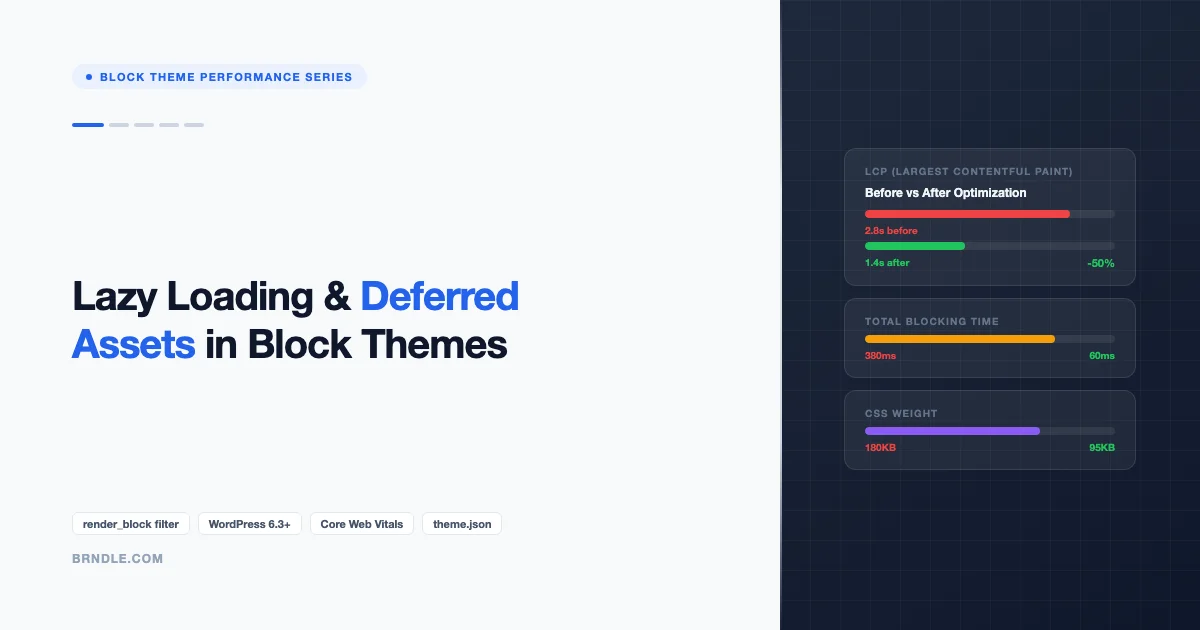
| LCP | 2.8s | 1.4s |
| Total blocking time | 380ms | 60ms |
| Page CSS weight | 180KB | 95KB |
| Render-blocking scripts | 4 | 0 |
| Time to first byte | 320ms | 320ms (unchanged) |
These numbers come from a real block theme audit on a site with 12 active block types and three third-party scripts. TTFB is unchanged because these are front-end optimizations; server response time is a separate concern covered in the rendering audit article at the end of this series.
Putting it all together: a block theme performance checklist
- Verify LCP image has
loading="eager"andfetchpriority="high"in the page source - Confirm all below-fold images have
loading="lazy"using DevTools Network tab filter on images - Enable separate block asset loading with the
should_load_separate_core_block_assetsfilter - Defer all non-critical scripts using the
strategyAPI or thescript_loader_tagfilter - Async-load non-critical stylesheets (dashicons, block library theme extras)
- Confirm
core/embediframes haveloading="lazy"in WordPress 6.3+ or add manually for older versions - Audit
theme.jsoncolor palette and spacing scale, remove entries not used in any template - Enable the speculative loading module for instant page transitions on WordPress 6.5+
- Run WebPageTest before/after for each change and record LCP, TBT, and CSS weight
- Use Query Monitor to verify defer strategy is set on all non-critical scripts
What comes next in this series
Lazy loading and script deferral establish a clean performance baseline. The next article in this Block Theme Performance series covers layout shifts specifically: understanding where CLS originates in block theme output, preventing font-swap shifts with the theme.json Font Face API, and stabilizing dynamic content areas that shift on load. After that we cover critical CSS extraction, where the biggest FCP gains come from for content-heavy block theme sites.
If you are already deep into a block theme performance audit, the rendering audit article at the end of the series has a complete Query Monitor and DevTools workflow for profiling slow blocks and identifying excessive DOM nodes. The full series covers everything from the initial lazy loading baseline in this article through to a production-ready performance checklist you can run on any block theme before launch.
Work with us on your block theme
We build and audit block themes across WordPress, Astro, and the broader JS framework ecosystem. If you are working on a block theme performance problem and want a second set of eyes on your theme.json, script queue, or Core Web Vitals numbers, reach out through the contact page. We take a small number of block theme performance engagements each quarter and can usually turn around a full audit within a week.