Setting Up Brndle Locally: Composer, Node 20, and the First npm run dev
Key takeaways
- Brndle’s own README states the requirements plainly: WordPress 6.6+, PHP 8.2+, Node 20+ and Composer for any development workflow, confirmed directly against the current
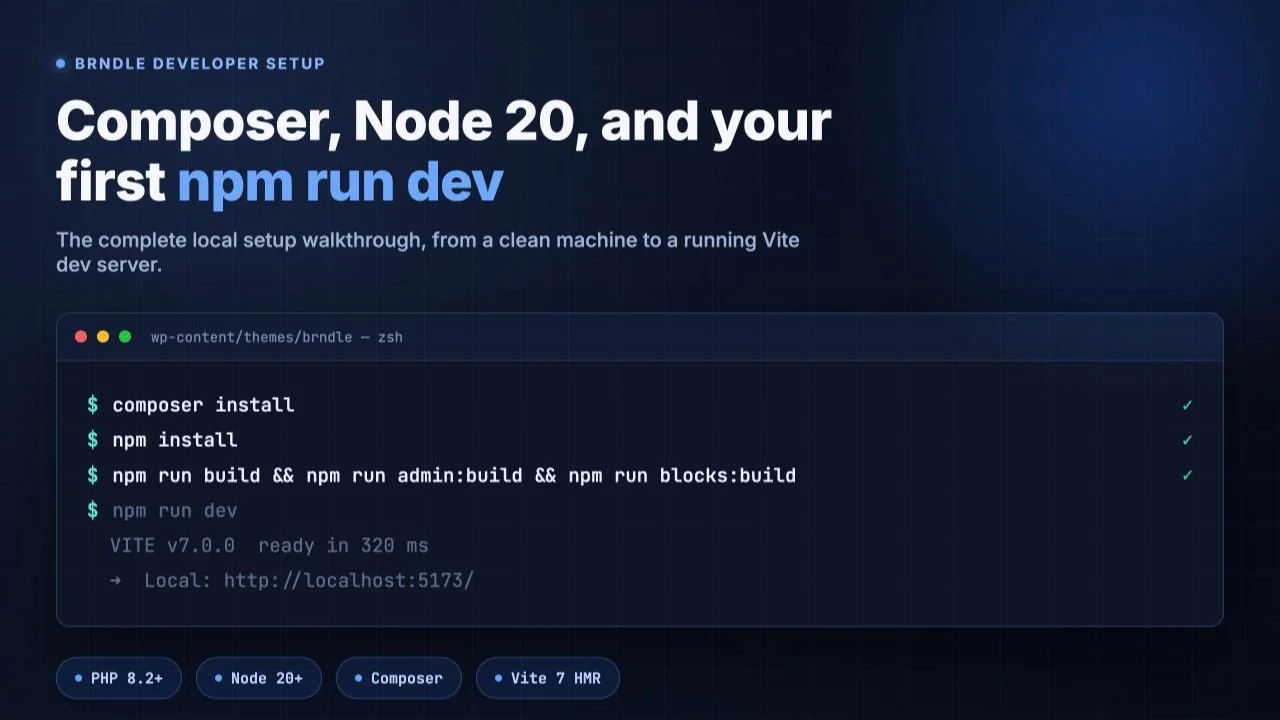
README.md,composer.jsonandpackage.jsonin the repo. - The from-source install is four commands:
composer install,npm install, thennpm run build && npm run admin:build && npm run blocks:build, then activate the theme in WordPress. Skipping the build step and activating anyway is the single most common first-run failure. composer.jsonpins"platform": {"php": "8.2.29"}, which meanscomposer installcan succeed even if your actual installed PHP is older than 8.2, because that setting tells Composer to resolve dependencies as if the platform were 8.2.29 regardless of reality. Check your real version withphp -v; don’t trust a cleancomposer installas proof you’re on 8.2+.npm run devstarts Vite 7’s dev server with Hot Module Replacement for the frontend theme assets inresources/jsandresources/css. It does not touch the admin settings panel or the block editor scripts, which are separate React + webpack bundles built by@wordpress/scriptsthroughadmin:build/admin:startandblocks:build/blocks:start.- None of this toolchain clears Acorn’s compiled Blade view cache. That’s a separate, already-documented gotcha with its own fix: Why Your Blade Edits Aren’t Showing Up.
If you’ve spent years building WordPress sites, your mental model of “installing a theme” is almost certainly: download a zip, drag it into Appearance → Themes → Add New → Upload Theme, click activate, done. That model is correct for Brndle too, as long as you grab a release zip. But the moment you clone the repository to actually work on the theme, customize a block, or follow along with any of the development-focused posts on this site, you hit a wall that plain WordPress theming never prepares you for: a composer.json, a package.json, and a README that opens with requirements you’ve probably never had to think about before, PHP 8.2+, Node 20+, Composer.
None of this is complicated once you’ve done it once. It’s also not optional, and it’s not something you can shortcut by “just uploading the folder” the way you would with a theme that has no build step. Brndle’s frontend CSS comes from Tailwind v4 compiled through Vite 7. Its admin settings panel and block editor controls are React, compiled through webpack. Its PHP layer runs through Acorn, a Roots package that needs Composer’s autoloader to exist at all before WordPress can even load the theme without a fatal error. Skip any one of these and you don’t get a theme with missing polish, you get a broken activation or a blank page.
This is the setup walkthrough for a developer who has never run composer install or npm run dev before, written against the actual commands, actual version numbers, and actual package scripts in Brndle’s public repository as of today, not guessed at from memory. We’ll install the prerequisites, clone the theme, run the exact build sequence from the README, explain in plain language what each tool is doing while it runs, and walk through the first-run errors that trip up people new to this stack, none of which happen to be documented in Brndle’s own README, so we’re covering them here instead.
In this guide
- What Composer and Node are actually doing in this theme
- Installing the prerequisites: PHP 8.2+, Composer, Node 20+
- Step 1: verify your versions before touching the theme
- Step 2: clone Brndle into wp-content/themes
- Step 3: composer install
- Step 4: npm install
- Step 5: the first build, and why order matters
- Step 6: activate the theme in WordPress
- Step 7: npm run dev and what Vite’s HMR is actually doing
- Common first-run errors and the actual fixes
- The related gotcha: Acorn’s view cache
- Questions developers ask
- Where this leaves you
What Composer and Node are actually doing in this theme
If you’ve only ever worked with themes distributed as a finished zip, it’s worth being explicit about what these two tools are for, because the WordPress plugin repository trained a generation of developers to never need either one.
Composer is PHP’s dependency manager. Brndle’s composer.json declares one real production dependency, "roots/acorn": "^5.0", the Roots package that brings Laravel’s service container, its Blade templating engine, and a chunk of its console tooling into a WordPress theme. Acorn itself has its own dependencies, Laravel framework components it needs to run. Composer’s job is to resolve that whole tree, download the correct versions into a vendor/ directory inside the theme, and generate the autoloader, the PHP file that lets functions.php write use Roots\Acorn\Application; and have that class actually resolve, instead of a fatal “class not found” error. Without a completed composer install, there is no vendor/autoload.php, Acorn never boots, and nothing in the theme that depends on it, which in Brndle’s case is most of the PHP layer, works at all.
Node and npm solve a completely different problem: the theme’s frontend source code isn’t written in a format browsers can run directly. Brndle’s styling is authored in Tailwind CSS v4 utility classes inside resources/css/app.css, and its interactive admin panel and block editor controls are written in React/JSX inside admin/src and blocks/src. Browsers don’t understand Tailwind’s @theme directives or JSX syntax. Something has to turn that source into plain CSS and plain JavaScript before a visitor’s browser ever sees it. That’s the job split across two different build tools in this one theme: Vite 7 compiles the Tailwind CSS and the minimal frontend JS, and webpack, driven through @wordpress/scripts, compiles the two React bundles. Node.js is the JavaScript runtime both of those build tools run on; npm is how you install them and how you invoke the scripts that run them. Neither tool ships to a visitor’s browser. They run once, on your machine (or your CI pipeline), and produce static output files that do.
Put together: Composer gets the PHP side able to boot. Node/npm gets the CSS and JS side compiled into something a browser can load. You need both, in that rough order, before the theme is in a state you can activate.
Installing the prerequisites: PHP 8.2+, Composer, Node 20+
Brndle’s README states the requirements without qualification: WordPress 6.6+, PHP 8.2+, Node 20+ (for development), and Composer (for development). The WordPress and PHP minimums usually come from whatever local environment you’re already running your WP install in (Local, Herd, Docker, a VPS); the Node and Composer requirements are almost always the new part. Here’s how to get both onto a Mac or a Linux box, with a short note for Windows.
PHP 8.2 or newer
If you’re already running WordPress locally through Local, Laravel Herd, or a similar all-in-one tool, you likely already have a PHP version selector built into that tool, use it to set the site to PHP 8.2 or later rather than installing PHP separately. If you’re managing PHP yourself at the command line:
# macOS, via Homebrew
brew install php@8.2
brew link php@8.2 --force

# Ubuntu/Debian, via the ondrej/php PPA (needed for current PHP on older Ubuntu releases)
sudo add-apt-repository ppa:ondrej/php
sudo apt update
sudo apt install php8.2 php8.2-cli php8.2-mbstring php8.2-xml php8.2-curl php8.2-zip
Composer
# macOS, via Homebrew
brew install composer

# Linux, the official installer
curl -sS https://getcomposer.org/installer | php
sudo mv composer.phar /usr/local/bin/composer
Either method puts a global composer command on your PATH. If you’d rather not touch anything globally, the Linux installer’s output is just a composer.phar file, you can leave it sitting inside the project and run it as php composer.phar install instead of installing it system-wide.
Node 20 or newer
Brndle’s package.json declares "engines": { "node": ">=20.0.0" }, confirmed directly in the current file. The cleanest way to get there, and the way that avoids every permission headache that comes with installing Node globally via a package manager, is nvm, Node Version Manager:
# install nvm itself (macOS and Linux)
curl -o- https://raw.githubusercontent.com/nvm-sh/nvm/v0.40.1/install.sh | bash

# restart your terminal, then:
nvm install 20
nvm use 20
node -v   # should print v20.x.x or newer
If you’d rather use a system package manager directly:
# macOS, via Homebrew
brew install node@20
brew link node@20 --force

# Ubuntu/Debian, via NodeSource
curl -fsSL https://deb.nodesource.com/setup_20.x | sudo -E bash -
sudo apt-get install -y nodejs
Windows and WSL. Native Windows PHP, Composer and Node all work, but the shell commands in this guide (and in Brndle’s own README) are written for a POSIX shell. The path of least resistance is WSL2 with an Ubuntu distribution: install it from an elevated PowerShell prompt with wsl --install -d Ubuntu, then follow the Linux commands above exactly as written, inside the WSL terminal. This also happens to match the environment most production WordPress hosting runs on, which matters more than it sounds like the first time something behaves differently between your laptop and your host.
Step 1: verify your versions before touching the theme
Before cloning anything, confirm the three tools are actually on your PATH at the versions Brndle needs:
php -v
composer --version
node -v
npm -v
You’re looking for a PHP line starting PHP 8.2 or higher, any current Composer 2.x version, and a Node version starting with v20 or higher (npm ships bundled with Node, so a current node -v implies a current npm -v automatically). If php -v reports something older than 8.2, stop here and fix that first, the section below on composer.json‘s platform override explains why composer install alone won’t reliably catch this for you.
Step 2: clone Brndle into wp-content/themes
This assumes you already have a WordPress install running locally, through whatever tool you normally use, Local, Laravel Herd, Docker, or a plain LAMP/MAMP stack. Brndle is a theme, not a CMS; it needs an existing WordPress site to activate into. From that site’s root, exactly as the README specifies:
git clone https://github.com/brndle-themes/brndle.git wp-content/themes/brndle
cd wp-content/themes/brndle
Everything from here runs from inside that wp-content/themes/brndle directory.
Step 3: composer install
composer installWhat you should see: Composer reading composer.lock, a line for each package it’s fetching (roots/acorn and its own dependency tree, plus laravel/pint as a dev dependency), a “Generating autoload files” line near the end, and then a line showing Acorn’s own post-install script firing, something like Roots\Acorn\ComposerScripts::postAutoloadDump, which is the hook Acorn uses to register itself with WordPress. The whole thing finishes in a few seconds on a reasonable connection. No output mentioning Node, npm, or JavaScript at any point, Composer and npm are two fully separate dependency trees that don’t know about each other.
A detail worth knowing before you trust a clean result here too much: composer.json sets "config": { "platform": { "php": "8.2.29" } }. That tells Composer to resolve every package’s PHP version constraint as though the running platform were exactly PHP 8.2.29, regardless of what PHP binary actually ran the command. It’s a legitimate setting, pinning dependency resolution so it’s reproducible across machines with slightly different patch versions, but the side effect is that composer install can complete without a single warning even if your real, installed PHP is older than 8.2. Composer isn’t lying to you, it’s doing exactly what that config line says. The actual check that matters is the php -v you ran in Step 1, not the absence of a Composer error.
Step 4: npm install
npm installThis reads package.json and installs everything in devDependencies into a node_modules directory, Vite 7, the Tailwind v4 Vite plugin, laravel-vite-plugin, @roots/vite-plugin, and @wordpress/scripts (which bundles webpack and the WordPress-specific build config underneath a simpler CLI) among them. Expect this step to take noticeably longer than composer install, it’s pulling considerably more packages, and expect a line at the end like added 900 packages in 45s (the exact count will drift as dependencies update; the shape of that line is what to look for). It’s also normal to see a handful of deprecation or peer-dependency warnings scroll past, those come from upstream packages and aren’t specific to anything wrong with your setup; an actual failure here looks like a wall of red npm ERR! lines ending the process with a non-zero exit code, not yellow warnings.
Step 5: the first build, and why order matters
The README gives this as one chained command, and it’s worth running it that way rather than splitting it up, specifically because of what && does: each command only runs if the one before it exited successfully.
npm run build && npm run admin:build && npm run blocks:buildReading package.json‘s scripts block directly, here’s what each of those three actually does:
npm run buildruns three steps in sequence: a font-copying script that pulls the variable-weight web fonts Brndle ships (Inter, DM Sans, Playfair Display, and others) out ofnode_modulesand intopublic/fonts, an icon-copying script for the Lucide icon set, and thenvite builditself, which compilesresources/css/app.css(Tailwind v4) and the frontend JS into hashed, production-ready files plus a manifest describing which source maps to which built filename.npm run admin:buildrunswp-scripts buildpointed atadmin/src, compiling the React-based settings panel (the one you’ll later find under the Brndle menu item in wp-admin) intoadmin/build.npm run blocks:buildruns the samewp-scripts buildcommand pointed atblocks/srcinstead, compiling the block editor JavaScript for Brndle’s custom Gutenberg blocks intoblocks/build.
Expect npm run build to print Fonts copied to public/fonts/, then a short icon-copy confirmation, then Vite’s own build output: a list of generated asset files with their gzipped sizes and a closing line like ✓ built in 1.8s. The two wp-scripts build commands print webpack’s standard build summary, asset names, sizes, and a “webpack compiled successfully” line, assuming no errors. If any of the three steps fails, the chain stops there, which is exactly why running them chained with && rather than as three separate commands is useful: you immediately know which stage broke instead of discovering later that the admin panel never got its React bundle because you only ran npm run build and stopped.
Step 6: activate the theme in WordPress
With the build finished, Brndle is now in exactly the state a downloaded release zip would already be in, compiled assets present, manifest in place. Activate it the normal way: Appearance → Themes in wp-admin, find Brndle in the list, click Activate. If you’d rather script this (useful if you’re using WP-CLI already):
wp theme activate brndleWhat you should see on activation: the site loads with Brndle’s default styling (the Sapphire color scheme and System UI font pairing out of the box), and a Brndle item appears in the wp-admin sidebar for the settings panel. If instead you get a white screen or a PHP fatal error mentioning a missing manifest file, that almost always means one of the three build commands in Step 5 silently didn’t finish, see the troubleshooting section below for the specific fix.
Step 7: npm run dev and what Vite’s HMR is actually doing
npm run devThis is the command you leave running in its own terminal tab while you actively work on the theme’s frontend, and it’s the one most likely to feel like magic if you’ve never used Vite before, so it’s worth being precise about the mechanism rather than just trusting that it works.
npm run dev maps straight to vite in package.json, Vite’s own dev server, nothing wrapping it. On a normal run you’ll see a banner like:
  VITE v7.0.0  ready in 320 ms

  ➜  Local:   http://localhost:5173/
  ➜  Network: use --host to expose
That server stays running in your terminal and starts watching resources/css/app.css and the files it imports, plus the minimal frontend JS in resources/js. Here’s the part that trips up developers coming from a plain-PHP or plain-WordPress background: Vite isn’t just rebuilding files faster than before. Through laravel-vite-plugin and @roots/vite-plugin, the theme’s own PHP asset-loading code can detect that the dev server is running and, instead of pointing your page’s <link> and <script> tags at the compiled files in public/build, it points them at http://localhost:5173 directly. Your browser loads the Vite dev client over a WebSocket connection, and when you save a change to a Tailwind class or a CSS value, Vite pushes just that changed stylesheet to the browser and swaps it in place, Hot Module Replacement, without a full page reload and without losing whatever state the page was in (scroll position, an open mobile menu, form input). Edit a JS file that isn’t eligible for a clean hot-swap and Vite falls back to a full browser reload automatically; either way, you never run a manual build command while this is active.
What npm run dev does not cover: the admin settings panel and the block editor scripts aren’t part of this Vite pipeline at all, they’re separate webpack bundles built through @wordpress/scripts. If you’re actively editing files in admin/src or blocks/src, the equivalent watch commands are npm run admin:start and npm run blocks:start respectively, run in their own terminal tabs alongside npm run dev if you need all three at once. Those run webpack in watch mode and rebuild on save, but without Vite’s HMR, you’ll need an ordinary browser refresh (or, for the block editor, a Gutenberg editor reload) to see the result, not an instant in-place swap.
And none of this, dev server, HMR, webpack watch mode, touches PHP template files at all. That’s a deliberate, separate system, and it’s the subject of the next section.
Common first-run errors and the actual fixes
Brndle’s README doesn’t carry a troubleshooting section, so the following is drawn from how this exact kind of PHP-plus-Node toolchain behaves in general, applied specifically to what Brndle’s composer.json and package.json actually contain. These are the errors that show up on a genuine first run, not edge cases.
“Your requirements could not be resolved” / PHP platform errors from Composer
If you see Composer explicitly complain about PHP version requirements despite the platform override discussed in Step 3, it usually means the PHP binary Composer is actually running under (check with composer diagnose or simply which php followed by php -v) is a version Composer can’t even safely assume the override for, or you have multiple PHP versions installed and your shell’s active one isn’t the 8.2+ you intended. Fix: confirm which php binary is first on your PATH, and on macOS with Homebrew, re-run brew link php@8.2 --force if an older linked version is winning.
npm warns about an unsupported engine, or install succeeds on an old Node anyway
Because package.json declares engines.node rather than hard-pinning it through .npmrc‘s engine-strict, npm’s default behavior is to print a warning and continue if your Node version doesn’t satisfy >=20.0.0, not to refuse outright. That means npm install can appear to succeed on Node 18 and then fail in a much less obvious way later, inside vite build or a webpack step, with an error that doesn’t mention version requirements at all. If anything downstream of a clean-looking npm install fails with a cryptic syntax or module error, check node -v before anything else.
Permission denied writing into wp-content/cache
The first time Acorn actually renders a view, it needs to write a compiled copy into wp-content/cache/acorn/framework/views/. If that directory (or its parent wp-content/cache) isn’t writable by whatever user PHP runs as, you’ll get a filesystem permission error on first page load after activation, not during composer install or the build steps themselves. Fix locally with chmod -R 775 wp-content/cache (and confirm ownership matches your web server’s user, www-data on most Linux setups); on a host, this is usually a file-ownership mismatch left over from a previous deploy.
Port 5173 already in use
Vite’s default dev server port is 5173. If you’ve got another Vite-based project’s dev server already running, or a previous npm run dev process that didn’t exit cleanly, Vite will usually just pick the next free port automatically and print the actual port it bound to in its startup banner, read that line rather than assuming 5173. If you specifically need the old port back, find and stop the process holding it: lsof -ti:5173 | xargs kill on macOS/Linux, then restart npm run dev.
White screen or a fatal error about a missing manifest after activating
Both @roots/vite-plugin and laravel-vite-plugin expect a manifest file describing the mapping from source files to their compiled, hashed output, generated by vite build, i.e., by npm run build. Activate the theme without that build ever having completed successfully (an interrupted process, a failed font-copy step because of a filesystem permission issue, a Ctrl-C mid-build) and the theme’s asset-enqueue code has nothing to read, which surfaces as a fatal error or a page with no styling at all depending on how far it gets. Fix: re-run npm run build on its own, watch it to completion without interruption, and confirm it ends with Vite’s ✓ built in ... line before touching WordPress again.
“command not found: vite” or “command not found: wp-scripts”
These binaries live inside node_modules/.bin, not on your system PATH directly. Always invoke them through npm run <script> (which knows to look in node_modules/.bin first), never by typing vite or wp-scripts straight into your shell. Seeing this error usually means either npm install never completed, or you’re trying to run the binary name directly instead of the npm script that wraps it.
Composer runs out of memory on a constrained host
On a small VPS or a container with a tight PHP memory limit, Composer’s own dependency-resolution step can hit the ceiling before it even starts downloading. The standard fix is to temporarily remove Composer’s self-imposed memory ceiling for that one run:
COMPOSER_MEMORY_LIMIT=-1 composer installThe related gotcha: Acorn’s view cache
Everything above gets you from a fresh clone to a running, editable theme. There’s one more surprise waiting on the other side of a successful setup, and it’s common enough, and separate enough from anything Composer or npm touches, that it has its own dedicated post rather than a few lines here. Once you start actually editing Blade templates in resources/views, you’ll eventually save a change, refresh, and see nothing happen, because Acorn compiles every .blade.php file into cached PHP and that cache doesn’t always know to invalidate itself the instant you’d expect. Neither npm run dev‘s HMR nor any command covered in this guide clears that cache, it’s an entirely different mechanism on the PHP side. The real fix, the symptom checklist for confirming it’s actually this and not something else, and the official wp acorn view:clear command are covered in full in Why Your Blade Edits Aren’t Showing Up: Acorn’s View Cache, Explained. Worth reading before you lose an hour to it the way most people do the first time.
Questions developers ask
Do I need Composer and Node to just use Brndle on a live site?
No. The release zip from Brndle’s GitHub Releases page already contains the compiled CSS, JS and admin/block bundles. Download it, upload it through Appearance → Themes → Add New → Upload Theme, activate, done, no build tools touch that path at all. Composer and Node only come into play when you’re working from the source repository directly.
Can I use Node 18 or Node 22 instead of Node 20?
package.json declares "node": ">=20.0.0" with no stated upper bound, so Node 22 or later should work fine in practice; Node 18 falls below the declared minimum and risks the silent-warning-then-later-failure pattern described in the troubleshooting section. If you’re choosing freely, matching whatever current Node LTS release is active is the safest default.
Do I need an existing WordPress install before I start any of this?
Yes. Brndle is a theme, and git clone ... wp-content/themes/brndle assumes a wp-content/themes directory already exists, which means a WordPress install already exists. Set up WordPress locally first, through whatever tool you normally use, then clone the theme into it.
What’s actually different between npm run build and npm run dev?
npm run build is a one-shot production compile: it runs once, writes finished hashed files and a manifest to disk, and exits. npm run dev starts a long-running Vite dev server with Hot Module Replacement instead, meant to stay open in a terminal tab for the length of a working session so every save reflects in the browser immediately. Use build before deploying or before activating the theme for the first time; use dev while you’re actively editing frontend CSS/JS.
Do I need to rerun admin:build and blocks:build every time I change something?
Only when you’ve changed files inside admin/src or blocks/src specifically, the React source for the settings panel and the block editor controls. Frontend Blade/CSS/JS changes under resources/ are handled entirely by npm run dev or npm run build and don’t require touching the two webpack bundles at all. If you’re going to be iterating on the admin panel or a block’s editor UI for a while, run npm run admin:start or npm run blocks:start instead of rebuilding by hand on every change, those run webpack in watch mode.
Does npm run dev’s hot reloading apply to the WordPress admin area too?
No. Vite’s HMR, wired up via laravel-vite-plugin and @roots/vite-plugin, covers the frontend assets in resources/js and resources/css only. The admin settings panel and block editor scripts are separate webpack bundles built through @wordpress/scripts, and they rebuild via their own watch commands with an ordinary browser or editor refresh, not Vite’s in-place swap.
I don’t have sudo access on this machine. Can I still install everything?
Yes. Installing Node through nvm never touches a system directory or needs elevated permissions, that’s one of its main advantages over a system package manager for exactly this situation. Composer’s installer produces a plain composer.phar file you can keep inside the project and run as php composer.phar install instead of moving it to a system bin directory that would need sudo to write to.
Why does composer install only ever mention roots/acorn, nothing Brndle-specific?
Because that’s genuinely the only production PHP dependency listed in composer.json‘s require block. Brndle’s own PHP, the service providers, the settings classes, the block registration, is autoloaded straight from app/ via the PSR-4 mapping in the same file, not installed as a package. Acorn is the one piece of someone else’s code the theme’s PHP layer actually depends on.
I ran every command in order and the site still shows a fatal error about a missing manifest. Now what?
This almost always means npm run build itself didn’t finish cleanly, even if the terminal appeared to return control to you. Scroll back through that specific command’s output looking for a failure in any of its three internal steps, font-copying, icon-copying, or the vite build call itself, fix whatever error is reported there (a missing font package in node_modules if npm install was interrupted is a common culprit), and rerun just npm run build on its own until it ends with Vite’s ✓ built in ... line before reactivating the theme.
Is any of this different if I’m developing against a staging or production server instead of locally?
The commands are identical, but you’d never run npm run dev against a server real visitors hit, its dev server is meant for a local machine, not a public endpoint. The standard pattern is: develop locally with npm run dev, run the full npm run build && npm run admin:build && npm run blocks:build sequence before deploying, and ship only the compiled output (or build it as part of your deploy pipeline), never the dev server itself.
Where this leaves you
None of the friction here is Brndle being unusual. A Composer autoloader, a Vite dev server, a webpack watch command, these are the ordinary cost of building a theme on Tailwind and Blade instead of plain enqueued stylesheets and PHP includes, and every Acorn-based project, Sage and Radicle included, asks for the same three tools at the door. The entire setup, done once, correctly, is: install PHP 8.2+, Composer and Node 20+, clone the repo into wp-content/themes, run composer install and npm install, run the three build commands in order, activate the theme, and then leave npm run dev running while you actually work. That’s the whole friction. It happens exactly once per machine you set this up on, and every session after that starts with a single npm run dev and picks up exactly where you left off. The payoff on the other side, Blade templates instead of string-concatenated HTML, Tailwind utilities instead of hand-maintained CSS files, a React settings panel instead of the Settings API, is the entire reason a developer would choose this theme over a zero-build alternative in the first place.