Why Your Blade Edits Aren’t Showing Up: Acorn’s View Cache, Explained
Key takeaways
- Acorn compiles every
.blade.phpfile into plain PHP once, then caches that compiled PHP atwp-content/cache/acorn/framework/views/so it never has to re-parse Blade syntax on a normal page load. - Laravel’s own Blade compiler checks each view’s file modification time and recompiles automatically when the source is newer, which is why most edits show up instantly with no manual step at all.
- That automatic check breaks down in specific, nameable situations: OPcache serving stale bytecode in production and staging, unreliable mtimes on synced or mounted dev filesystems, and deploy pipelines that copy an old compiled cache alongside new source files.
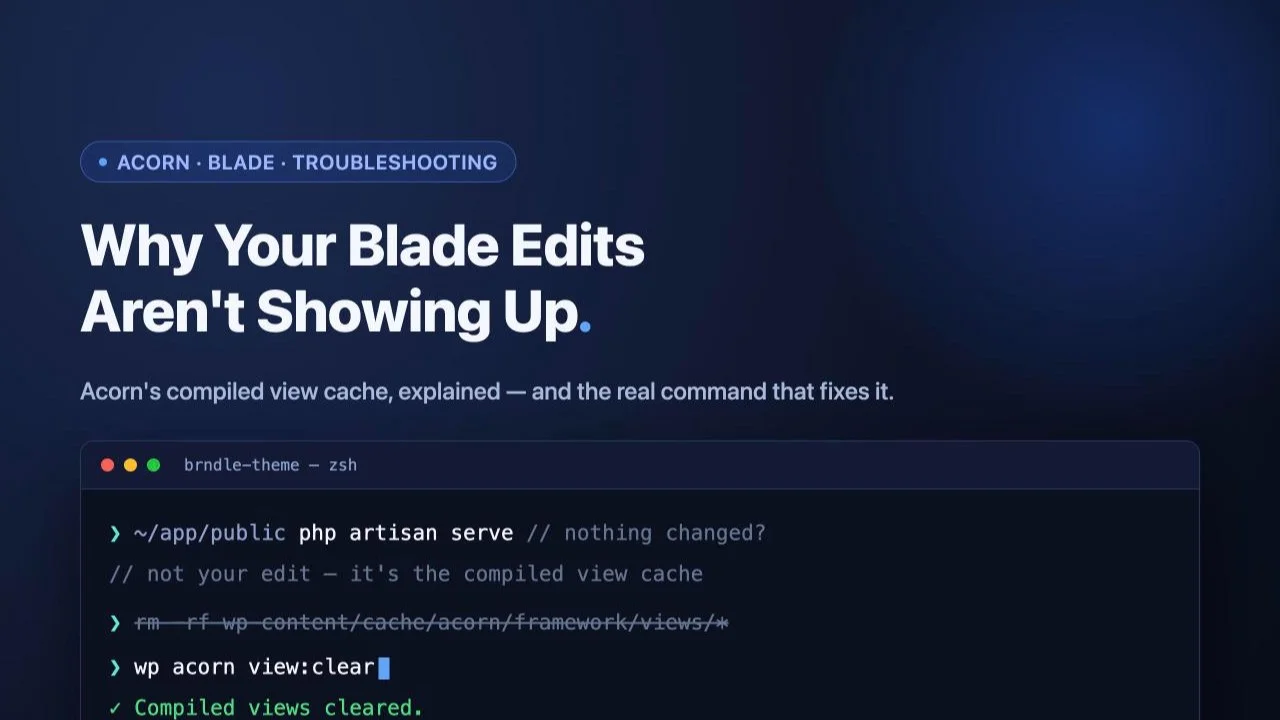
- The theme’s own README fix is
rm -rf wp-content/cache/acorn/framework/views/*. Acorn also ships an official equivalent through its WP-CLI bridge:wp acorn view:clear, confirmed against Acorn’s own console command documentation. - Vite’s dev server and HMR have nothing to do with this cache. It watches JS and CSS, not
.blade.phpfiles, sonpm run devrunning in another tab will never clear a stale compiled view for you.
You open a block’s Blade view, change a label, add a conditional, fix a typo in a class name. You save the file, flip back to the browser, hit refresh. Nothing changes. You refresh again, harder this time, the way you refresh things you don’t quite trust. Still nothing. You start doubting basic facts: is this the active theme? Did the save actually write to disk? Is there a second copy of this file somewhere you forgot about? You add a deliberately broken {{ 'TEST' }} to the top of the template just to see if anything you type ever reaches the page, and even that doesn’t show up.
It isn’t your edit. It’s Acorn serving you a compiled copy of the view from before you touched it. This is one of the first real surprises that trips up anyone moving from plain PHP templates, or even from WordPress block themes, into a Brndle project, because nothing about plain WordPress theming prepares you for a server-side template cache that sits between your source file and the page. We touched this briefly in our walkthrough on registering a custom block with BlockServiceProvider, as one line in a troubleshooting list: clear the cache, move on. This post is the thing that one line was standing in for. What the cache actually is, why Acorn has it at all, how to tell it’s actually your problem and not something else wearing the same symptom, the real command to fix it, and what is and isn’t true about avoiding it while you work.
In this guide
- What Acorn’s view cache actually is
- Why it exists: compiling Blade is not free
- How the cache is supposed to invalidate itself
- The symptom checklist: confirm it’s actually this
- The fix: the real commands, in order
- Why the automatic check sometimes doesn’t save you
- Prevention during active development
- The related gotcha: what npm run dev does and doesn’t clear
- Questions developers ask
- Where this leaves you
What Acorn’s view cache actually is
Acorn is the Roots package that brings Laravel’s container, service providers and, relevant here, its Blade templating engine into a WordPress theme. Brndle is built on roots/acorn the same way Sage is, which we verified directly in its composer.json while researching our Sage vs Radicle vs Brndle comparison. Every block view, every layout partial, every .blade.php file in resources/views/ gets rendered through that same Blade engine, and Blade does not execute its own template syntax directly. It compiles it.
“Compiles” here means something specific: Blade reads your .blade.php source, translates every @if, @foreach, {{ $variable }} and @include into equivalent plain PHP, and writes that translated PHP out to a real file on disk. That file is not a cache in the vague sense of “something stored for later.” It is literally the executable code that runs on every subsequent request, until something tells Blade the source has changed.
Where that compiled file lives is set in one line, in config/view.php, the same config Acorn ships and the same one Laravel itself uses under the hood:
'compiled' => env('VIEW_COMPILED_PATH', storage_path('framework/views')),In a plain Laravel app, storage_path() points inside the project’s own storage/ directory. Acorn overrides that helper for the WordPress context so it resolves inside wp-content/cache/acorn/ instead, which is why the compiled views end up specifically at:
wp-content/cache/acorn/framework/views/That’s the exact directory Brndle’s README tells you to empty when a template edit refuses to show up, and now you know why that path has that shape: it isn’t an arbitrary Acorn convention, it’s Laravel’s own default compiled-views location, relocated into WordPress’s content directory so it survives a theme update and sits somewhere WordPress already expects writable cache data to live.
Open that directory on a working Brndle install and you’ll find a flat pile of PHP files with hashed filenames, no folder structure matching resources/views/ at all. Each filename is a hash of the original view’s absolute path, which is how Blade finds the right compiled file for a given view without needing to mirror your directory tree. One source .blade.php file maps to exactly one compiled PHP file, every time, at the same hashed path, which matters in a few paragraphs when we get to why overwriting that file in place is part of the problem.
Why it exists: compiling Blade is not free
It would be simpler, from a mental-model standpoint, if Blade just parsed your template fresh on every page load. No cache, no stale state, no “did I clear it” ritual. Sage and Radicle, built on the identical Acorn foundation, make the same tradeoff Brndle does, for the same reason: parsing template syntax is genuinely expensive when you do it on every single request, and a WordPress theme serving real traffic does not get to treat “every single request” as a rare event.
Parsing {{ $title }} into something that can safely echo an escaped string, resolving an @include directive into the right nested view call, walking a @foreach loop’s structure into valid PHP control flow, all of that is string-processing and tree-walking work, done against source text, before a single byte of HTML gets produced. Do it once per deploy and cache the output, and every real visitor after that is just executing ordinary compiled PHP, the same cost as if you had hand-written that PHP yourself with no templating layer in between. Do it on every request instead, and you’ve added a parsing pass in front of every single page view for every single visitor, forever, for no benefit any of those visitors will ever notice.
This is the same reasoning WordPress itself applies to transients, to object caching, and to the page cache a host sits in front of a site: anything that produces the same output from the same input is a candidate for computing once and serving many times. Acorn’s view cache is that principle applied specifically to the translation step between Blade syntax and runnable PHP, nothing more exotic than that.
How the cache is supposed to invalidate itself
Here’s the part that gets skipped in most quick explanations, and it’s the part that actually matters for understanding why this bug feels so confusing: Blade is not supposed to need manual clearing for a routine edit. It has a built-in freshness check, and under normal conditions it runs automatically on every single request.
Before Blade’s rendering engine hands you a compiled view, it compares two timestamps: the modification time of your source .blade.php file, and the modification time of the already-compiled PHP file sitting in wp-content/cache/acorn/framework/views/. If the source file’s timestamp is newer, Blade treats the compiled copy as expired, throws it away, recompiles the source from scratch, and serves the fresh result. This is why, on a normal local setup, you can edit a Blade view, save, refresh, and just see the change. No one told you about a cache because nothing about the normal workflow ever surfaces one. The mechanism works quietly in the background on every page load, comparing two numbers, and most of the time those two numbers behave exactly the way you’d expect.
Keep that mental model precise, because it’s the key to the rest of this post: Acorn’s view cache is not “a cache that goes stale and needs periodic clearing,” the way you might think of a CDN cache or a page cache. It’s a cache with an automatic self-check that is supposed to make manual clearing unnecessary for the one thing people assume it’s for, editing a template. When you do need to clear it by hand, something has interfered with that self-check specifically, not with caching in general. That’s a narrower, more diagnosable problem than “caching is broken,” and the next section is about pinning down whether you’re actually looking at it.
The symptom checklist: confirm it’s actually this
“I edited something and nothing changed” is one symptom with several unrelated causes in a WordPress-plus-Acorn stack, and clearing the view cache only fixes one of them. Work through this list before you touch anything, because the fastest way to burn an hour is clearing the right cache for the wrong reason, twice, while the actual cause sits untouched.
- You edited a
.blade.phpfile specifically, not a JS or CSS asset. Changes to a Vite-bundled script or stylesheet are a completely different build pipeline with its own cache and its own invalidation story. If you touchedresources/js/orresources/css/, the compiled view cache is the wrong suspect entirely; go check whether Vite rebuilt the asset and whether the browser is serving an old bundle from its own cache instead. - You hard-refreshed and tried an incognito window. This rules out your browser’s own HTML and asset caching, which is unrelated to Acorn but produces an identical “I edited this and nothing happened” feeling. If incognito shows the change and your normal window doesn’t, the browser was the whole problem and you can stop here.
- You confirmed which theme and which file is actually active. Acorn’s view resolution checks the active theme’s
resources/views/first, then a parent theme’s, then the application’s ownresources/views, in that order, per the paths listed inconfig/view.php. If you’re editing a child theme file while a parent theme’s view of the same name is what’s actually resolving, or editing a file in a theme that WordPress has since deactivated, you’ll see “no change” for a reason that has nothing to do with caching. - You checked whether anything sits in front of PHP on this environment. A page cache plugin, a Redis or Memcached object cache, or a CDN like Cloudflare can all serve a fully rendered HTML response without your edited PHP ever executing again. If one of those is active, purge it explicitly and reload before concluding the view cache is at fault; otherwise you can chase the wrong cache for a long time.
- The page shows your old markup byte-for-byte, not a PHP error and not blank output. A compiled-view problem produces a normal-looking page running stale logic, not a visible failure. If you’re instead seeing a WordPress error, a blank white page, or Acorn’s own “view not found” exception, that’s a different bug with a different fix, and clearing the compiled cache won’t touch it.
If you’ve gone through all five and you’re still looking at a page that reflects a version of your Blade file from before your last save, you’ve correctly isolated the problem. Move to the fix.
The fix: the real commands, in order
Brndle’s README gives you the blunt-instrument version, and it works every time because it leaves nothing to interpret:
rm -rf wp-content/cache/acorn/framework/views/*That deletes every compiled view file outright. The next request that needs any view recompiles it fresh from source, with no stale copy left anywhere to serve by mistake. It’s crude, it’s total, and it is genuinely the right tool when you want certainty: there’s no partial state left to second-guess afterward.
Acorn also ships an official, narrower equivalent, reachable through its WP-CLI bridge. Acorn registers a set of Artisan-style commands under wp acorn, documented directly in Acorn’s own console command reference, and the view-cache command is one of them:
wp acorn view:clearThat’s the same operation as the rm -rf, run through Acorn’s own command layer instead of your shell reaching directly into wp-content. If you’re already running WP-CLI for other theme or plugin work, this is the version worth building a habit around, because it reads as an intentional theme operation rather than a filesystem-level workaround, and it works identically on any host where you have WP-CLI access but not necessarily a shell deep enough to rm -rf inside wp-content directly.
Two related commands from that same bridge are worth knowing, because they solve adjacent problems the view cache alone won’t:
| Command | What it clears | When you need it |
|---|---|---|
wp acorn view:clear | Compiled Blade templates only | A template edit isn’t showing up |
wp acorn cache:clear | Acorn’s general application cache (the Laravel cache layer, not WordPress transients) | Code using Acorn’s Cache:: facade is serving old values |
wp acorn optimize:clear | Cached bootstrap files: config cache, route cache, and compiled views together | You’ve changed config values or routes and nothing reflects it, or you just want a clean slate |
If the first view:clear doesn’t fix it, reach for optimize:clear before assuming the whole diagnosis is wrong. A stale config cache can produce symptoms that look exactly like a stale view, because a cached config value feeding into a Blade conditional will keep rendering the old branch no matter how many times you recompile the template around it.
One more thing worth checking if clearing the cache doesn’t fix anything: file permissions. wp-content/cache/acorn/framework/views/ has to be writable by whatever user PHP runs as. If a previous deploy left that directory owned by a different user, or a restrictive hosting policy locked it down, Acorn can fail to write new compiled files silently and keep falling back to whatever stale copy it can still read. Confirm the directory is writable before concluding the clear command itself didn’t work.
Why the automatic check sometimes doesn’t save you
If Blade recompiles automatically whenever the source file’s timestamp is newer, the obvious question is why you’d ever need to run a manual clear command at all. The answer is that the automatic check depends on timestamps and file content behaving the way a normal, un-cached filesystem behaves, and several completely ordinary pieces of PHP and deployment infrastructure quietly break that assumption. None of this is Acorn being unreliable; it’s Acorn’s one assumption meeting an environment that doesn’t hold up its end.
OPcache serving the old bytecode for the same filename
This is the most common real-world cause on staging and production, and it has nothing to do with Blade’s own freshness check, which can work perfectly and still not help you. PHP’s OPcache compiles PHP files into bytecode and caches that bytecode by file path, separately from anything Acorn or Blade does. When opcache.validate_timestamps is set to 0, a common production setting chosen specifically for speed, OPcache stops checking whether a file’s contents changed before serving its cached bytecode for that path. Here’s where that collides with Acorn’s compiled views: Blade writes every recompiled version of a given view to the same hashed filename every time. Blade can correctly detect your source changed, correctly recompile it, correctly write the new PHP to disk, and OPcache will still hand execution the bytecode it cached for that exact filename the first time it ever ran, because as far as OPcache’s own timestamp check is concerned, that check was turned off. The fix in that situation is restarting PHP-FPM (or whatever clears OPcache’s in-memory table on your host) in addition to clearing the view cache, not instead of it.
Mtimes you can’t trust on synced or mounted dev environments
Blade’s freshness check is only as good as the filesystem’s modification-time reporting, and that reporting isn’t universally reliable the moment a bind mount, a network share, or a sync tool sits between you and the disk. Docker Desktop’s bind-mounted volumes on macOS and Windows, Vagrant’s NFS-synced folders, and any setup where your editor writes to one filesystem while PHP reads from a mounted view of it, have all shipped real bugs where a file’s mtime doesn’t update the way a native filesystem would guarantee. If you’re developing inside a container or VM and editing from the host, this is worth ruling out specifically, because it produces exactly this symptom with no error anywhere to point at it.
Deploys that copy an old cache alongside new source
A deploy script that rsyncs a full wp-content directory, including whatever sat in cache/acorn/ on the source side, can land a compiled view with a newer mtime than the template it was compiled from, simply because of the order files were written during the transfer or because rsync --times preserved an old timestamp from the original checkout. Blade’s check only works if the comparison it’s making reflects reality; a deploy pipeline that moves both halves of that comparison around independently can leave it comparing stale numbers. The practical rule: never deploy the compiled-views cache directory at all. Treat it the same way you’d treat node_modules or a build output folder, something regenerated on the target, not something shipped.
Prevention during active development
It would be convenient to end this section with a config flag that disables Blade compilation entirely while you’re developing, the way some frameworks let you skip compilation in a debug mode. We checked Acorn’s own documentation, its shipped config files, and Brndle’s README specifically looking for one, and it isn’t there. There is no APP_ENV=local switch, no view.cache boolean, nothing in config/view.php beyond the debug flag that controls whether a view’s name and data get dumped for inspection, which is unrelated to whether compilation happens. We’re not going to invent one here just because it would make this section tidier. If a future Acorn release adds that switch, it isn’t documented yet.
What’s real, and what we’d actually recommend instead of waiting for a flag that doesn’t exist:
- Make
wp acorn view:cleara reflex, not a last resort. Since the automatic check genuinely does work most of the time, you only need this when you’ve hit one of the specific breakdowns above, but running it after any edit that “didn’t take” costs a few seconds and ends the guessing immediately. A one-line shell alias or acomposer.jsonscript entry (something like"blade-clear": "wp acorn view:clear") turns it into a single command instead of a path you have to remember. - Never run
wp acorn view:cachewhile you’re actively editing templates. That command exists for the opposite situation: eagerly pre-compiling every view ahead of time, which is a production optimization that trades a slower deploy step for zero compilation cost on a visitor’s first request. Running it during development locks in whatever state your views were in at that moment and will make the exact symptom this post is about far more likely to recur. - Set
opcache.validate_timestamps=1(or leave OPcache off) in your localphp.ini. This is a PHP-level setting, not an Acorn one, but it directly prevents the single most common cause of “I cleared the cache and it’s still stale,” because it keeps OPcache honoring file changes instead of trusting a cached bytecode table indefinitely. - If you’re in a container or VM, confirm mtimes update where PHP actually reads the file, once, early in the project, rather than rediscovering it mid-task. A quick
touchandstatfrom both the host and the container tells you in seconds whether this is a risk on your specific setup.
The related gotcha: what npm run dev does and doesn’t clear
If you came to Acorn from a mostly-JavaScript background, there’s a reasonable assumption worth naming and correcting directly: that npm run dev, with Vite’s dev server and hot module replacement running in a terminal tab, is somehow watching your whole theme and will pick up a Blade edit the same way it picks up a component change. It will not, and the reason is architectural, not a missing feature. Vite’s dev server and HMR pipeline watches files inside resources/js/ and resources/css/, the assets it’s actually responsible for bundling. A .blade.php file isn’t a Vite asset at all; it’s a server-side PHP template that Acorn’s Blade compiler handles entirely on its own, through a completely separate mechanism with its own cache directory and its own freshness check, one that has nothing to do with a running dev server or a browser WebSocket connection.
Brndle’s README and Acorn’s documentation don’t describe any file-watcher that bridges the two, and we didn’t find one in the source. The two systems solve genuinely different problems: Vite exists to make editing JS and CSS fast and reflect changes in the browser without a full reload; Acorn’s view cache exists to make server-rendered PHP fast once compiled, with correctness, not instant iteration, as the design goal. Keep that split in mind and the “but my dev server is running” confusion mostly goes away on its own.
Questions developers ask
Does deleting the compiled views cache delete my actual template?
No. wp-content/cache/acorn/framework/views/ holds generated PHP, derived entirely from your source .blade.php files in resources/views/. Deleting everything in it is always safe and always recoverable: the next request that needs any view simply recompiles it from the source file that’s still sitting exactly where you left it.
Will clearing the view cache slow down the next page load?
Slightly, and only once per view. The very next request for a given template has to pay the compilation cost again, since there’s nothing cached yet. Every subsequent request for that same view is back to serving the compiled PHP directly, exactly as fast as before. On a real site, this cost is invisible; on a local environment where you’re clearing it constantly while developing, it’s the few extra milliseconds you’re trading for correctness.
Is this the same thing as WordPress’s object cache or a page cache plugin?
No, and conflating them is one of the most common ways this gets misdiagnosed. A page cache or CDN caches the final rendered HTML response and can serve it without PHP running at all. An object cache (Redis, Memcached) caches arbitrary PHP data, often database query results, independent of templating entirely. Acorn’s view cache sits earlier than both: it caches the compiled form of the template logic itself, before any of that other caching layer gets involved. Clearing one does nothing to the others, which is exactly why the symptom checklist earlier in this post asks you to rule each one out individually.
Why does Acorn put its cache inside wp-content instead of somewhere else?
Because config/view.php‘s compiled setting defaults to Laravel’s own storage_path('framework/views'), and Acorn redefines storage_path() for the WordPress context to resolve inside wp-content/cache/acorn/. That keeps the generated cache alongside other WordPress-managed cache data, in a location that survives a theme file update (since it’s outside the theme folder itself) and that most hosting setups already treat as writable, disposable storage.
Can I just set file permissions so the cache never gets stale?
Permissions control whether Acorn can write a fresh compiled file at all, not whether it decides to. If the directory isn’t writable, you’ll get write failures or silently-stale fallbacks, which is a different, worse problem than a normally functioning cache. Fix permissions so writes succeed; don’t treat permissions as a substitute for understanding when a clear is actually needed.
I cleared the cache and the page still didn’t change. What’s left?
Walk back through the symptom checklist: confirm you’re editing the file that’s actually resolving (active theme, correct path, correct naming per Acorn’s view-lookup order), rule out a page cache or CDN sitting in front of the response, and if there’s any chance OPcache has validate_timestamps=0, restart PHP-FPM after clearing. If none of that explains it, you may be looking at a genuinely different bug, not a cache at all; check for a PHP error being swallowed, or confirm the block or template is even registered to render where you think it is.
Does every Acorn-based theme have this exact cache path?
Any theme built on roots/acorn with the default config/view.php shares this mechanism, since the compiled path setting and Acorn’s WordPress-specific storage_path() override live in Acorn itself, not in Brndle’s theme code. Sage and Radicle, also built on Acorn, use the identical approach. A project that’s overridden VIEW_COMPILED_PATH in its environment config would have a different path, but that’s an explicit opt-out, not the default.
Should I add the cache directory to .gitignore?
Yes. It’s generated, environment-specific output, the same category as a build folder, and committing it risks exactly the stale-timestamp-on-deploy problem described earlier if it ever gets checked out alongside newer source files on a different machine.
Is there a way to see which compiled file corresponds to which Blade view?
Acorn exposes a getCompiled() helper off the view engine’s compiler for exactly this kind of inspection, returning the compiled file path for a given view. For day-to-day debugging, though, clearing the whole directory and letting it rebuild is almost always faster than trying to hunt down and inspect one hashed filename by hand.
Does this affect block editor previews the same way it affects the live frontend?
Yes. Brndle’s blocks render through the same Acorn view() call on both the saved frontend and anywhere else that render callback runs, so a stale compiled view can show up identically in both places. If a block’s appearance in the editor and on the live page are both wrong in the same way, that’s consistent with a compiled-view problem rather than something specific to editor rendering.
Where this leaves you
The view cache isn’t a flaw in Acorn, and it isn’t something Brndle bolted on top of a simpler system. It’s the same tradeoff every templating-on-top-of-PHP framework makes, compile once, run fast many times, with a self-check built in specifically so you almost never have to think about it. Most Blade edits during normal development just work, because that self-check is doing its job quietly on every request. When it doesn’t, it’s almost always one of a short, nameable list: OPcache ignoring file changes, a filesystem whose timestamps don’t mean what Blade assumes they mean, or a deploy that moved the cache and the source out of sync with each other. Name which one you’re looking at, run wp acorn view:clear or the blunter rm -rf wp-content/cache/acorn/framework/views/*, and you’re back to editing templates and seeing your edits, which is the only part of this anyone actually wants to be doing.