Best Software for Virtual Classrooms in 2026
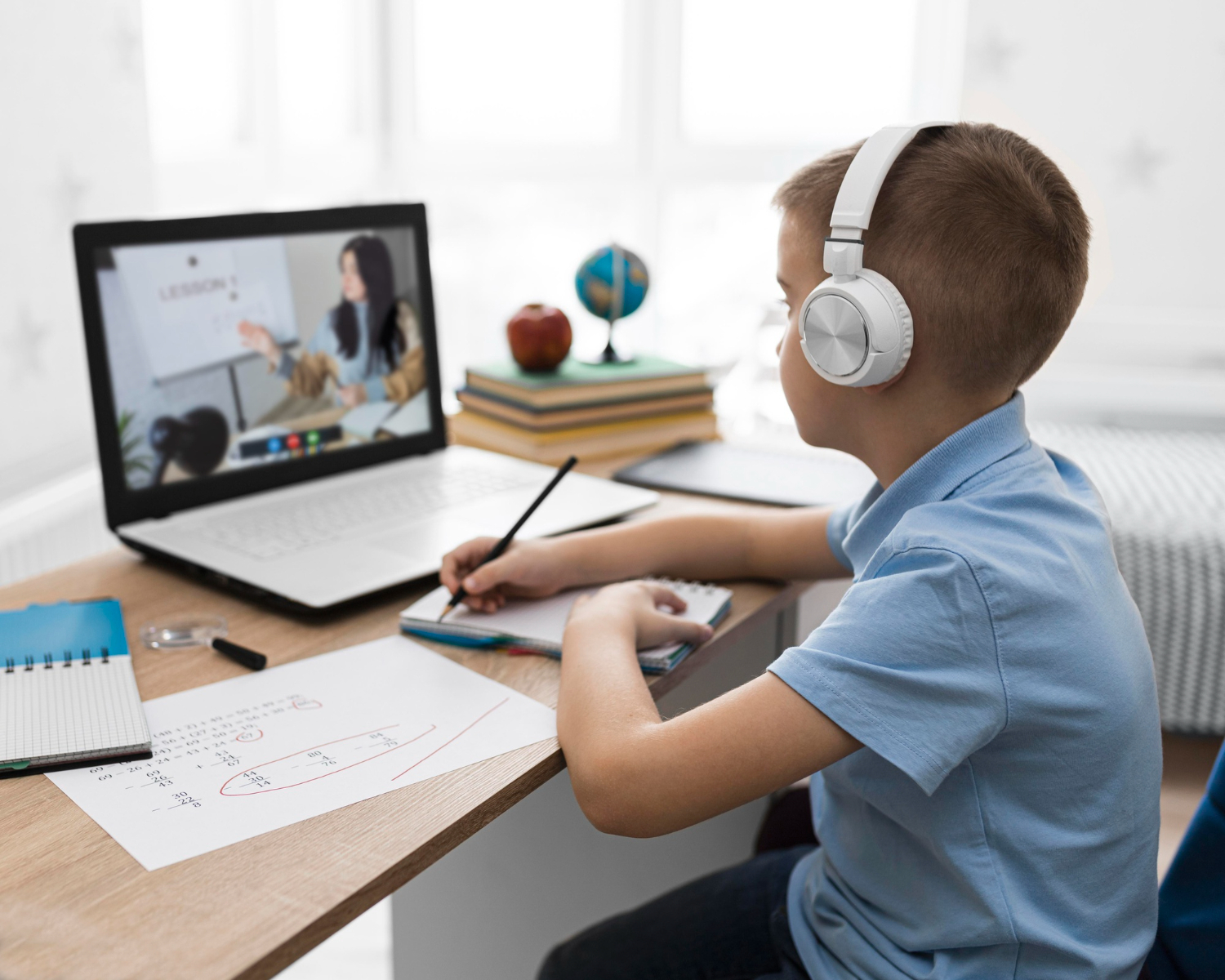
Remote learning has evolved rapidly, and virtual classroom software is now a critical component for schools, universities, training centers, and corporate environments. In 2026, these platforms offer AI-enhanced engagement and immersive collaboration tools, with integration into learning management systems that older video-call software never had to consider.
The platforms below split roughly into two camps: general-purpose video tools adapted for education, and software built from the ground up for a classroom. Which camp fits depends less on budget than on how much of your teaching actually depends on features a generic meeting tool was never designed to offer.
Top Virtual Classroom Platforms for 2026
1. Zoom for Education
Zoom continues to lead with breakout rooms, polling, whiteboarding, and AI-powered transcription for accessible learning. Its education tier adds attendance tracking and classroom management controls that the standard consumer version lacks, plus tighter administrative controls for institutions managing hundreds of instructor accounts at once.
The tradeoff is that Zoom is still fundamentally a video-conferencing tool with education features layered on top, rather than a classroom platform with video built in. It excels at the live session itself; assignment management, gradebooks, and course structure all live somewhere else.
2. Microsoft Teams Education
Teams integrates with Office 365 for seamless document collaboration, assignments, and class management. For institutions already licensed for Microsoft 365, this is close to a free addition, since Teams comes bundled rather than sold separately for education tenants.
Assignment tools inside Teams for Education go further than Zoom’s, with built-in rubrics and grading workflows. The interface has more of a learning curve for instructors coming from simpler tools, and performance can lag on older school-issued hardware compared to lighter competitors.
3. Google Classroom + Meet
Google’s education suite offers intuitive virtual classrooms with assignment tracking and grading integration. It’s free for schools using Google Workspace for Education, which makes it the default choice for a huge share of K-12 institutions already standardized on Google’s ecosystem.
Meet’s video quality and feature set trail Zoom’s in raw capability, fewer breakout room controls, simpler whiteboarding, but the tight integration with Classroom’s assignment and grading workflow covers what most K-12 teachers actually need day to day without bolting together separate tools.
4. BigBlueButton
Open-source virtual classroom designed specifically for education with shared notes and multi-user whiteboard. Because it’s built purpose-first for teaching rather than adapted from a general meeting tool, features like multi-user whiteboards and breakout rooms feel native rather than bolted on.
Self-hosting BigBlueButton requires real server infrastructure and technical maintenance, which is why most schools access it through a hosted LMS integration (Moodle and Canvas both support it natively) rather than running it themselves from scratch.
5. Webex Classroom
Cisco Webex offers enterprise-grade security with education-specific features and analytics. It’s a strong fit for institutions with strict compliance requirements, government-adjacent education, healthcare-affiliated training programs, where Cisco’s enterprise security credentials carry real weight with IT and compliance departments.
Feature parity with Zoom is close on paper, but Webex’s classroom-specific tools feel less refined than Zoom’s, which has iterated on education features longer and more aggressively.
Live Session Tools vs. Full LMS Integration
Zoom, Teams, and Webex are primarily live-session tools. They handle the video call well and offer some classroom features around the edges, but assignments, grading, and course structure typically live in a separate LMS that the video tool integrates with rather than replaces.
Google Classroom and BigBlueButton (through an LMS like Moodle) sit closer to full integration, where the live session and the coursework structure share the same platform. That reduces context-switching for both instructor and student, at the cost of somewhat less polished video features than a dedicated conferencing tool.
Neither approach is objectively better. A university running an established LMS alongside Zoom for lectures is optimizing for best-in-class video. A K-12 school running Google Classroom end to end is optimizing for one login, one interface, fewer moving parts for young students to manage.
Bandwidth and Hardware Realities
Video quality on any of these platforms degrades under the same conditions: insufficient upload bandwidth, older hardware struggling to encode video, and Wi-Fi congestion from multiple household devices competing for the same connection. This matters more for K-12 remote learners than for corporate training, where equipment and connections are usually more consistent.
BigBlueButton and Google Meet both tend to run lighter on older hardware than Zoom or Teams, which run more processing locally for features like virtual backgrounds and AI noise suppression. For schools issuing older Chromebooks to students, that difference can be the deciding factor over any feature comparison.
Engagement Features That Actually Move the Needle
Breakout rooms work when instructors actually assign structured tasks inside them, not just “discuss amongst yourselves” with no accountability. Every major platform here supports breakout rooms; the difference in outcomes comes almost entirely from how instructors use them, not which platform’s version is technically superior.
Polling and quick-check quizzes embedded directly in the live session catch disengagement in real time, far more reliably than watching a grid of video tiles for signs of attention. Zoom and Teams both build this in natively; Google Meet requires a separate add-on or third-party tool for anything beyond basic polls.
AI-powered transcription and captioning, now standard on Zoom and increasingly on Teams, matters for accessibility beyond just deaf or hard-of-hearing students. Searchable transcripts let any student review exactly what was said at a specific moment in a two-hour lecture instead of scrubbing through video.
Security and Privacy for Younger Students
K-12 deployments carry privacy obligations that corporate training doesn’t, FERPA in the U.S. and similar frameworks elsewhere. Waiting rooms, meeting locks, and verified-participant-only entry aren’t optional extras for a classroom with minors; they’re baseline requirements any platform chosen for K-12 needs to support by default, not as an opt-in setting an overworked teacher has to remember to enable.
Google Classroom and Microsoft Teams for Education both build these protections in as defaults tied to the institution’s managed accounts. Zoom and Webex support the same protections but require more deliberate admin-level configuration to lock down properly for a K-12 deployment specifically.
Which Platform Fits Which Institution
Small private tutoring businesses and independent instructors usually do best on Zoom’s paid individual tier, since the setup overhead is minimal and the education-specific breakout and polling tools cover what a one-teacher operation needs without an IT department to configure anything.
K-12 public schools benefit most from whichever ecosystem the district has already standardized on. Fighting the existing Google Workspace or Microsoft 365 deployment to introduce a third platform usually creates more support burden than the marginal feature gain is worth.
Universities running large lecture courses alongside smaller seminars often end up with two tools rather than one: Zoom or Webex for large lecture broadcast, and a lighter, LMS-integrated option like BigBlueButton for smaller discussion sections, rather than forcing one platform to handle both scales well.
Corporate training departments weigh things differently than schools do. Session recording quality, analytics on completion and engagement, and integration with an existing corporate LMS or HR system usually matter more than K-12-specific concerns like FERPA compliance or classroom management tools built for younger students.
Pricing Tiers and What They Actually Unlock
Free tiers across this category share a common limitation: session time caps, usually 40 minutes to an hour, that make them unusable for anything beyond a short check-in. Zoom’s free tier hits this wall fastest and most visibly, which is why nearly every school running Zoom at scale is on a paid education license.
Google Workspace for Education and Microsoft 365 Education both offer free tiers to qualifying institutions that remove most of these caps, which is the real reason both dominate K-12 deployments over Zoom despite Zoom’s stronger raw feature set. The institutional pricing model, not the feature comparison, drives adoption at scale more than any single feature does.
BigBlueButton itself is free and open source; the cost shows up in hosting and the LMS subscription (Moodle hosting, Canvas licensing) it typically runs through, which varies enough by provider that it’s worth getting a direct quote rather than assuming a fixed number.
Corporate Training Use Cases
Corporate onboarding and compliance training lean on different features than academic teaching does. Attendance verification with timestamped proof of participation matters for compliance training in regulated industries in a way it rarely does for a university seminar. Webex and Teams both offer stronger audit-trail features here than Zoom’s education tier, which is built more around the classroom-management use case than compliance documentation.
Sales and customer-facing training programs often prioritize screen-share quality and breakout room capacity for role-play exercises over classroom-specific tools like gradebooks, which corporate training rarely uses in the academic sense anyway.
Hybrid and HyFlex Classroom Setups
A HyFlex setup, some students in the physical room, some joining remotely, in the same live session, is genuinely harder to run well than either fully in-person or fully remote teaching. The core problem is asymmetric attention: a teacher physically in the room naturally engages the students they can see and hear directly, while remote students watching a single room camera become passive observers.
Dedicated hybrid classroom cameras with auto-tracking, paired with a ceiling or classroom microphone array rather than a laptop’s built-in mic, close much of that gap regardless of which video platform sits on top. The platform choice matters less here than the physical hardware setup in the room itself, a detail that gets overlooked when institutions focus purely on software comparisons.
WordPress Integration
Integrate virtual classrooms with WordPress using Tutor LMS which has native Zoom integration. Reign Theme provides excellent community features for student engagement outside live sessions. For a deeper side-by-side breakdown, see our other guide on virtual classroom software.
For instructors who’d rather run a dedicated course platform outside the WordPress plugin stack, Learnomy is a free standalone LMS with zero-percent-fee checkout, worth considering for anyone selling live-taught courses directly without splitting revenue with a marketplace.
Accessibility Beyond Captions
Live captioning covers hearing accessibility, but screen reader compatibility and keyboard-only navigation matter just as much for students with visual or motor impairments, and get tested far less consistently across these platforms. Zoom and Microsoft Teams both maintain active accessibility documentation and screen reader support that’s genuinely usable; smaller or open-source tools sometimes lag behind on this specific dimension even when their core video features are solid.
Before committing to a platform for an institution with any students requiring assistive technology, test the actual login flow, joining a session, and using core features like raising a hand or accessing chat, with the assistive technology those specific students use, not just the general accessibility statement on the vendor’s website.
Common Setup Mistakes
Running a virtual classroom on the free tier of a video tool and hitting a hard 40-minute session cutoff mid-lecture is a surprisingly common, entirely avoidable mistake. Confirm session length limits on whatever tier you’re actually paying for before the first day of class, not after a lecture cuts off in front of students.
Skipping a dry run of breakout rooms and screen sharing before the first real session is the second. Features that work perfectly in a two-person test call sometimes behave differently at class scale, screen share lag with 30 participants, breakout room assignment taking longer than expected. Test at the actual class size, not a stripped-down demo.
Frequently Asked Questions
Is Zoom or Google Classroom better for K-12?
Depends on the school’s existing ecosystem. Schools on Google Workspace for Education generally do better sticking with Google Meet inside Classroom for one unified login. Schools without that existing infrastructure often find Zoom’s video quality and feature set worth the separate tool.
Can BigBlueButton replace Zoom for a university?
For institutions already running Moodle or Canvas with BigBlueButton integration, yes, it handles core live-teaching needs well. For anyone needing enterprise-grade webinar features or large-scale lecture broadcasts beyond a single classroom’s size, a dedicated tool like Zoom or Webex still has an edge.
Do these platforms work well for hybrid classes with some students in person?
Unevenly. Most weren’t designed with a hybrid room in mind, and remote students often report feeling like an afterthought in a room-camera setup. Dedicated hybrid classroom hardware paired with any of these platforms improves the experience considerably over a laptop webcam pointed at a whiteboard.
How much does session recording matter for accessibility?
A lot, and it’s often underused. Recorded sessions with searchable transcripts let students who missed a live session, or who need to review material at their own pace, get equivalent access to the material. Confirm your chosen platform’s recording and transcript retention policy fits your institution’s needs before relying on it as an accessibility fallback.
What’s the biggest hidden cost institutions forget to budget for?
Bandwidth and device upgrades on the student side, not the software license itself. A district can pay for a top-tier platform and still see poor outcomes if a meaningful share of students are joining on old devices over unreliable home internet. Budget for device and connectivity support alongside the platform license, not as an afterthought.
Can a small tutoring business get away with a free plan long-term?
Only for very short sessions under the free-tier time cap. Anything resembling a real lesson runs past 40 minutes quickly, so most working tutors move to a paid individual plan within their first few weeks rather than fighting the time limit session after session.
Migrating Between Platforms Without Losing Continuity
Switching a whole institution’s virtual classroom platform mid-year is disruptive enough that most schools wait for a natural break point, end of semester, start of a new academic year, rather than forcing a change while classes are running. Export recorded sessions, gradebook data, and enrollment lists before any migration; not every platform makes this a one-click process, and losing a semester’s recorded lecture archive during a rushed switch is a common, avoidable failure.
Run a pilot with a small number of classes on the new platform for at least a few weeks before a full rollout. Issues that never show up in a vendor demo, screen-share performance at real class size, breakout room assignment speed with 30 students instead of five, surface reliably once real classes are running on it.
Instructor Training Matters More Than Platform Choice
An underused truth in this whole category: the gap between a well-run virtual classroom and a poorly-run one on the same software is usually bigger than the gap between two different software platforms. An instructor trained specifically on running structured breakout activities, managing a chat while presenting, and reading engagement signals on a video grid produces better outcomes on a mediocre platform than an untrained instructor produces on the best platform available.
Budget training time for instructors alongside the platform rollout, not as a one-time onboarding email nobody reads. A short live practice session, teaching a mock class to colleagues before teaching real students, catches more real problems than any feature comparison chart.
Conclusion
The best virtual classroom software in 2026 balances ease of use with genuine engagement features, not just a stable video feed, and it rewards the institutions willing to train instructors properly on top of whatever platform they land on. Zoom offers the most comprehensive toolset for live sessions, while open-source BigBlueButton provides cost-effective, education-first alternatives for institutions willing to run it through an LMS. For broader learning needs, our guides on language learning software and e-learning platforms cover the surrounding stack.