A Pre-Migration Checklist for Agencies: What to Freeze Before Switching a Client’s Theme
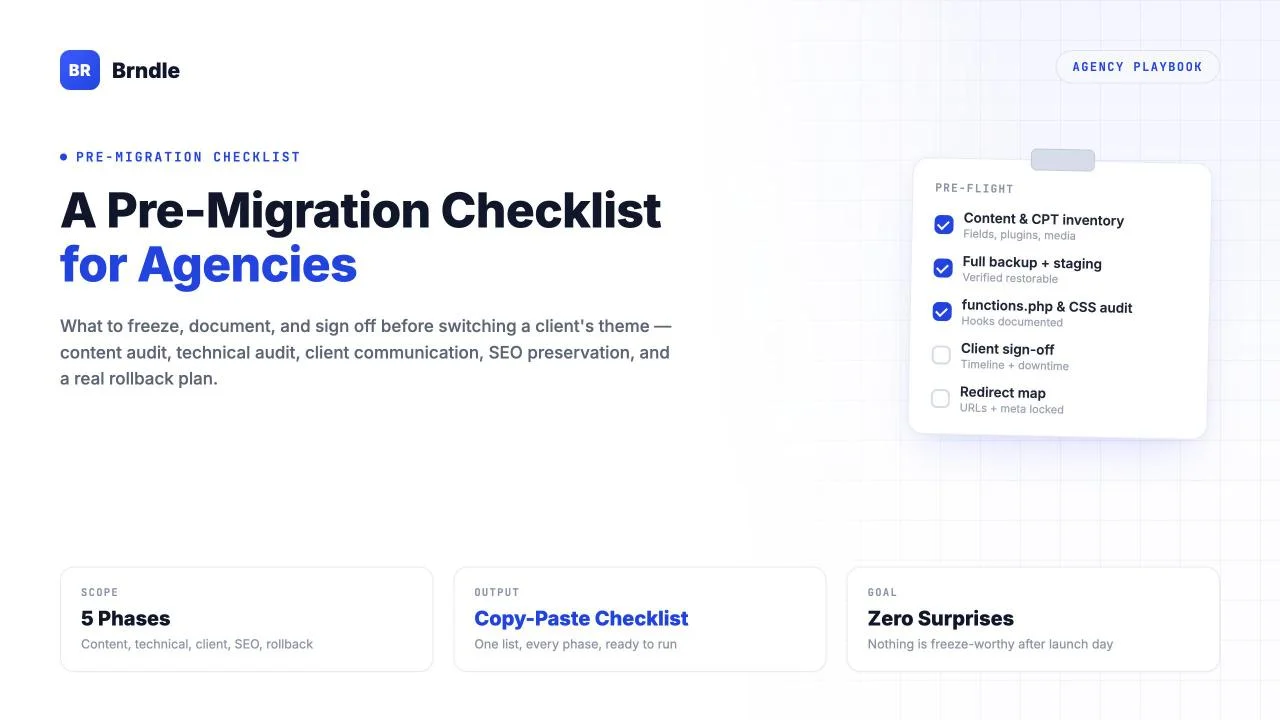
Most theme migrations that go wrong do not go wrong during the rebuild. They go wrong in the week before it, in the step nobody wrote down: the custom field nobody remembered existed, the three lines in functions.php that quietly power the booking form, the client who thought “switching the theme” meant the site would look the same but faster. By the time the new theme is active and the first support ticket lands, the actual mistake happened days earlier – at the point where someone skipped the audit and went straight to the rebuild.
This is not a guide to migrating to any specific theme. We cover those elsewhere – Kadence Blocks to Brndle, Flatsome to a block theme, Elementor to a block theme, and more as we publish them. Every one of those posts assumes you have already done the work this post is about. This is the step before the rebuild: the pre-migration checklist, written the way an agency that has done this enough times to have scar tissue would actually run it. It applies whether the destination theme is Brndle, another block theme, or something else entirely – the freeze-and-document discipline here does not change based on where the site is going.
A migration that goes wrong almost never fails because the new theme was bad. It fails because nobody wrote down what the old site actually depended on before they switched it off.
Five phases, each with its own failure mode and its own owner:
| Phase | Fails silently as | Typically owned by | Key artifact |
|---|---|---|---|
| Content audit | “We didn’t know that existed” | Developer | Content type & field inventory |
| Technical audit | “It used to do that automatically” | Developer | Annotated functions.php & hook list |
| Client communication | “Nobody told us it would look different” | Project manager / account lead | Written timeline & sign-off |
| SEO preservation | A ranking drop discovered weeks later | Developer + SEO owner | URL baseline & redirect map |
| Rollback planning | A panicked, improvised recovery | Whoever has launch-day authority | Written rollback runbook |
Skip any one of the five and the other four don’t save you – a flawless technical audit still ships a site the client wasn’t prepared for, and a perfectly communicated timeline doesn’t stop a ranking drop nobody built a redirect map against.
In this guide
- Why migrations break when this step gets skipped
- Phase 1: Content audit
- Phase 2: Technical audit
- Phase 3: Client communication
- Phase 4: SEO preservation
- Phase 5: Rollback planning
- The printable checklist
- A migration that skipped this step
- Ready to execute: the product-specific guides
- Questions about pre-migration prep
- The freeze is the project
Why migrations break when this step gets skipped
Theme migrations fail for a small, repeatable set of reasons, and almost none of them are “the new theme was bad.” They fail because somebody assumed they knew what the old site contained, and they were wrong about something load-bearing.
- A custom field that a plugin reads but no template visibly displays.
- A hook in
functions.phpthat redirects a specific URL pattern for a legacy campaign still running in a client’s paid ads. - A content type – testimonials, team members, locations – built as a custom post type two developers ago, with forty entries nobody thought to inventory because it “isn’t really content, it’s just data.”
Every one of those is invisible until the new theme goes live and something that used to work stops working. At that point you’re debugging in production, on a site the client is actively looking at, with no clean way to compare against what was there before because nobody took a full inventory of what “before” actually was. The checklist below exists to move every one of those discoveries from launch day to planning day, where they’re an afternoon of documentation instead of an emergency.
The five phases below aren’t sequential in the sense that you finish one and never return to it – client communication, in particular, should start as soon as the content audit gives you a real scope to communicate, not after everything else is done. But they are sequential in the sense that each one depends on information the previous one produces: you can’t write an honest timeline before you know what the technical audit found, and you can’t build a redirect map before the content audit tells you which URLs exist. Work them roughly in order, and don’t let “we’re excited to start building” skip you past any of them.
Phase 1: Content audit
The content audit answers one question completely before you touch anything else: what does this site actually contain, in a form you can check off against the new build? Not “it’s a WordPress site with some pages and a blog” – an itemized inventory specific enough that when the rebuild is done, you can compare the two lists and know exactly what’s missing.
- Every content type, standard and custom. Posts and pages are the obvious ones. List every custom post type too – team members, case studies, locations, products, testimonials, events – with an entry count for each. Check Tools → Site Health → Info → Post Types in wp-admin, or run
wp post-type listvia WP-CLI, to get the registered list rather than relying on memory. A content type with three entries is easy to rebuild by hand; one with three hundred is a migration task in its own right and changes your whole estimate. - Every custom field and where it’s used. If the site uses ACF, Meta Box, or native custom fields, export the field group definitions and note which template each field actually renders in. A field that’s populated but never displayed anywhere is still data you need to decide whether to carry forward – don’t assume “not visible on the frontend” means “safe to drop” without asking why it’s there.
- Every plugin that touches theme output. Not every plugin on the site matters to a theme migration – a security plugin or a backup plugin doesn’t care what theme is active. What matters are plugins that hook into the theme’s templates, register shortcodes used in page content, or depend on theme-specific markup. Go through the plugin list and flag anything that adds content to a template, registers a widget area, or ships its own frontend styling.
- Every menu, widget area, and template-specific layout. Primary nav, footer nav, any secondary menus, every active widget in every sidebar or footer column, and any page using a non-default template. These are easy to forget because they’re structural, not content you’d scroll past while reviewing pages.
- Every media asset actually in use versus sitting in the library. You don’t need to inventory every image ever uploaded, but you do need the ones referenced in page content, as featured images, and as logos/favicons/OG images set in theme or plugin settings – because those last three live in option fields that a theme switch can silently reset to defaults.
- Every form and where its submissions go. Contact forms, quote request forms, newsletter signups. Note the plugin, the notification email address, and any third-party integration. Forms are exactly the kind of thing that looks fine in the editor after a migration and then silently stops delivering because a hidden field the old theme populated is gone.
Don’t do this from memory, and don’t do it by clicking through the site as a visitor. Pull it from the database and the admin screens directly: wp post-type list, wp post list --post_type=<type> --format=count for counts, the Site Health info panel for a fuller system snapshot, and the Plugins screen with each one checked against its own description. A content audit built from assumptions is a content audit that misses exactly the thing that bites you later.
Phase 2: Technical audit
This is the phase that protects you from the failure mode where the migration “works” – pages render, nothing throws an error – but something the old theme was quietly doing has stopped happening, and nobody notices until a client calls asking why a feature they relied on is gone.
Backup and staging environment, before anything else is touched
- Full backup – database and files, not database-only – taken and then actually test-restored somewhere, not just confirmed as “completed” by the backup plugin’s log. A backup you haven’t restored is a backup you’re guessing about.
- A staging environment cloned from production, not a fresh install with sample content. A clean install hides exactly the edge cases you’re trying to find.
- Outgoing email disabled on the staging clone, before any form gets tested there – the single most common staging mistake is a test submission reaching a real customer, or a WooCommerce order confirmation going out for a test purchase.
- Staging kept in sync with production content changes if the client keeps publishing during the rebuild window. Decide upfront whether content is frozen for the migration’s duration or whether you’ll need a re-sync step before cutover, and tell the client which one it is.
Document every custom CSS, hook, and functions.php addition
This is the step most agencies underscope, because it requires actually reading code someone else wrote, possibly years ago, possibly without comments. Do it anyway – it is where the migrations we’ve seen fall apart.
- Pull the full contents of
functions.phpfrom the active theme (and any child theme) and go through it function by function. For each one, write down what it does, what triggers it, and whether it’s theme-presentation logic the new theme should replace, or site-logic that needs to survive the switch regardless of what theme is active. - Separate theme-coupled code from site-logic code. A function that adds a custom logo size or registers a theme support flag is presentation logic. A function that processes a custom field on save, sends a notification email, or modifies WooCommerce behavior is site logic that belongs in a plugin, not a theme file. If site logic is currently living in the old theme’s
functions.php, this migration is your opportunity to relocate it into a small must-use or custom plugin so the next theme switch doesn’t face the same problem. - Inventory every custom CSS source – the Customizer’s Additional CSS field, any custom-CSS plugin, and any CSS hardcoded into a child theme’s stylesheet. None of it transfers automatically, and some of it targets classes that only exist in the old theme’s markup, so copying the text verbatim won’t necessarily do anything in the new theme.
- List every filter and action hook a plugin uses to modify theme output – WooCommerce hooks that inject content into product pages, SEO plugin hooks tied to template structure, anything a form plugin has wired into a specific template file. Each one is a dependency the new theme may not have a matching hook for.
- Note every third-party API integration and where its credentials live – Google Maps keys, payment gateway keys, analytics IDs, chat widget codes. These usually live in plugin settings rather than the theme, but confirm that before cutover rather than discovering a map widget is blank because its key was hardcoded into a template override.
Check for child theme and template overrides
If a child theme overrides specific template files from a plugin – a common WooCommerce pattern, copies of content-product.php or similar sitting in the child theme’s woocommerce/ folder – those overrides are tied to the old theme’s template hierarchy and will not carry forward. List every overridden file and what it changes from the plugin’s default, so you know what needs rebuilding versus what can inherit the plugin’s stock behavior.
Phase 3: Client communication
A theme migration that’s technically flawless and badly communicated still reads as a failure to the client, because what they experience is not the code, it’s the gap between what they expected and what they got. This phase closes that gap before launch, not after.
- Set the timeline in writing, with the real phases named. Not “a few weeks” – a dated breakdown of audit, staging build, content migration, client review, and cutover, so the client can plan their own work around it instead of around a vague “soon.”
- Be specific about downtime, including “none.” Most theme migrations done properly – staging build, tested cutover – involve minutes of downtime during the actual switch, not hours. Say that plainly if it’s true; it’s one of the most common unspoken client fears. If there is a planned downtime window, give the exact time, expected duration, and confirm it’s outside the client’s peak traffic hours.
- Show, don’t just tell, what will look different. “The new theme has a different design system” means nothing until a client sees it. Share staging access early and walk through specific pages, pointing out what changed and why. A client who sees the new homepage for the first time on launch day, in front of their own team, is going to react defensively regardless of how good it looks.
- Name the features that won’t carry over, before launch. If the old theme had a built-in feature the new theme doesn’t replicate, tell the client now with the reasoning and the alternative. A client discovering a missing feature on their own reads as something broke; a client told in advance reads as a decision they were part of.
- Get written sign-off at two points, not one. First on the audit scope – confirming the inventory is complete. Second on the staging site immediately before cutover. The first catches scope gaps; the second catches “this isn’t what I expected” before it’s live instead of after.
- Tell them who to contact and how fast, for the first 48 hours after launch. Post-launch issues are normal on any migration of real size. What keeps a client calm is knowing in advance that a short punch-list period is expected, and exactly how to report something.
Phase 4: SEO preservation
A theme switch should not cost a site its search rankings, and when it does, the cause is almost always one of the items below going unchecked – not the new theme being somehow worse for SEO.
- Export the full current URL list before you start. Pull every published post, page, product, and category/tag archive URL – a sitemap export or an XML sitemap crawl both work. This is your before-and-after baseline; without it you have no way to confirm nothing dropped out of the index after launch.
- Decide, deliberately, whether the URL structure changes. A theme migration does not require changing permalinks or slugs, and in most cases it shouldn’t – keeping URLs identical is the single biggest thing you can do to protect existing rankings.
- Build a 301 redirect map for every URL that changes, before launch, not reactively after a 404 shows up in Search Console. Keep it as a simple, testable list:
old_url,new_url,redirect_type
/services/web-design,/services/design,301
/blog/category/news,/insights,301
/old-landing-page,/,301- Test every row on staging against the staging domain before it’s deployed to production. Treat an untested redirect map as untested code – because that’s what it is.
- Export and re-verify meta titles and descriptions. Whatever SEO plugin manages this stores its data independently of the theme, so meta content should survive a theme switch. What doesn’t automatically survive is anything the old theme injected into
<head>directly rather than through the SEO plugin. - Confirm structured data still renders after the switch. If schema is generated by the SEO plugin it should carry over; if any of it was hardcoded into the old theme’s templates, it needs to be rebuilt or confirmed covered. Check with Google’s Rich Results Test on staging before launch.
- Re-submit the XML sitemap and watch Search Console’s Coverage report for two weeks after cutover. A spike in 404s or a drop in indexed pages is your signal that something in the redirect map got missed, and it’s far easier to fix in week one than to discover in a ranking drop six weeks later.
- Check canonical tags and any hreflang setup if the site has multilingual or regional variants – easy to lose if they were configured per-template rather than through a plugin.
Phase 5: Rollback planning
A rollback plan isn’t pessimism, it’s the thing that makes cutover day survivable. Decide what “reverting” actually means, in writing, before you need it – figuring it out in the moment, with a client watching a broken site, is a much worse time to design the plan.
- Define what triggers a rollback versus what’s a post-launch fix. Agree in advance on severity thresholds: a broken checkout or a site-wide fatal error is a rollback trigger; a misaligned button on one page is a fix-forward item.
- Keep the old theme installed and inactive, not deleted, for a defined window after launch – two to four weeks is typical. Deleting it on launch day removes your fastest rollback path for no benefit.
- Know exactly what reactivating the old theme does and doesn’t undo. It reverts the visual layer almost instantly. It does not revert content changes made after cutover, plugin updates applied during the migration window, or database changes from a new plugin installed for the new theme.
- Keep a verified, dated backup from immediately before cutover, separate from the regular backup schedule, so a full-restore rollback is a known-good option if something goes wrong at the database level.
- Name who has the authority to call a rollback, and make sure they’re reachable during the cutover window. A decision made by committee, mid-incident, is slower than one person with the authority and the runbook in front of them.
Write the steps down as an actual runbook, not tribal knowledge – in order, with the exact plugin or hosting panel each step happens in:
1. Reactivate [old theme name] via Appearance > Themes
2. Restore database snapshot [backup-label] via [backup plugin]
3. Purge cache at [host/CDN cache panel]
4. Confirm homepage, top 5 pages, and checkout load correctly
5. Notify client contact: [name] via [channel]
The person executing a rollback under time pressure should not be improvising from memory.
The printable checklist
Everything above, condensed into one list. Copy this into your project management tool as-is and check items off as the audit progresses – it’s written to be used, not just read.
Content audit
- Every content type (standard and custom) listed with entry counts
- Every custom field group exported, with usage noted per template
- Every theme-coupled plugin flagged (shortcodes, template hooks, frontend CSS)
- Every menu, widget area, and non-default page template documented
- Every in-use media asset confirmed (content images, logos, favicons, OG images)
- Every form inventoried with its notification destination and integrations
Technical audit
- Full backup (database + files) taken and test-restored
- Staging environment cloned from production, outgoing email disabled
functions.phpread function by function, theme logic separated from site logic- All custom CSS sources inventoried (Customizer, plugin, child theme stylesheet)
- All theme-output filter/action hooks from plugins listed
- Third-party API keys and integrations confirmed independent of theme files
- Child theme / plugin template overrides listed with what each one changes
Client communication
- Written timeline with named phases and dates shared with the client
- Downtime expectation stated explicitly, including a window if one is needed
- Staging access shared and walked through page by page
- Features that won’t carry over named before launch, with the alternative plan
- Sign-off collected on audit scope
- Sign-off collected on staging site immediately pre-cutover
- Post-launch contact process and response-time expectation communicated
SEO preservation
- Full current URL list exported as a before/after baseline
- URL structure change decision made deliberately, not as a side effect
- 301 redirect map built and tested on staging for every changed URL
- Meta titles/descriptions re-verified after the switch
- Structured data confirmed rendering (SEO plugin or rebuilt if theme-hardcoded)
- XML sitemap resubmitted and Search Console coverage watched for two weeks
- Canonical tags and hreflang (if applicable) confirmed intact
Rollback planning
- Rollback trigger severity threshold agreed with the client in advance
- Old theme kept installed and inactive for a defined post-launch window
- Scope of a theme-only rollback documented (what it does and doesn’t undo)
- Pre-cutover full backup verified and clearly labeled
- Rollback decision-maker named and reachable during the cutover window
- Rollback runbook written as explicit, ordered steps
A migration that skipped this step
The shape of this story repeats across enough migrations that it’s worth describing in general terms rather than as a single incident: an agency takes on a theme switch for an existing client site, scopes it as a rebuild of the visible pages, and starts work directly in a copy of the live site rather than true staging, because the timeline is tight and the audit step “feels like it will slow things down.”
The rebuild itself goes fine. Pages look better, load faster, pass a visual review. The theme goes live on a Friday afternoon, because that’s when the rebuild happened to finish. Over the weekend, three things surface, none of which were on anyone’s radar because no audit had surfaced them:
- A locations custom post type that fed a “find a store near you” widget stops rendering, because the old theme had a template file that queried it directly and the new theme has no equivalent template.
- A contact form that used to CC a specific sales rep based on a hidden field populated by the old theme’s page template stops sending that CC, so leads start going to one inbox instead of being routed.
- The site’s top category pages, which had slugs changed as part of the “while we’re in there” restructuring, start 404-ing in search results, because nobody built a redirect map – the change wasn’t even flagged as something that needed one.
None of these are individually catastrophic. Together, over a weekend with no one available to triage because nobody had defined who owned a rollback decision, they add up to a client who spent Monday morning fielding complaints about a “broken” site instead of enjoying the redesign, a lead-routing gap that cost actual sales opportunities, and a ranking dip on exactly the pages that mattered most, discovered two weeks later in a traffic report instead of caught on day one in Search Console.
Every one of those three problems is directly addressed by one item in the checklist above: the content audit would have surfaced the locations post type, the technical audit would have found the hidden form field, and the SEO preservation phase would have caught the slug change before it shipped. None of it was a hard problem to solve. It was only a problem because nobody looked for it before launch.
Ready to execute: the product-specific guides
Once the checklist above is complete – content audited, technical dependencies documented, client aligned, SEO protected, rollback plan written – the next step depends on what the site is migrating from. We’ve published the specifics for the migrations we see most often:
- Migrating a Kadence Site to Brndle – a block-by-block map from Kadence Blocks’ 24 free block types to Brndle’s 20 native ones, what converts directly, what needs core WordPress blocks, and a realistic hour estimate for the rebuild.
- Flatsome Theme in 2026: Keep It or Move to a Block Theme? – what UX Builder shortcode lock-in actually costs on the way out, and a seven-step migration order that keeps a WooCommerce checkout live through the move.
- Page Builder to Block Theme: What Converts, What You Rebuild – a real 26-widget Elementor page run through “Convert to blocks,” with an honest account of what survived and what had to be rebuilt by hand.
Each of those posts assumes the inventory, backup, and sign-off work above is already done. Reading them before the checklist is finished is how “should we migrate” turns into “we migrated and now we’re finding out what we missed.”
Questions about pre-migration prep
How long should a pre-migration checklist like this actually take?
For a typical small-to-midsize marketing or content site, budget half a day to two full days for the audit phases combined, scaling up with the number of custom post types, custom fields, and theme-coupled plugins in use. Client communication and SEO preservation run in parallel with the rebuild rather than adding sequential time, as long as you start them early. A site with heavy custom functionality or a large product catalog can reasonably take longer on the technical audit alone – treat the estimate above as a floor, not a ceiling.
Does this checklist change if the new theme is a block theme versus a classic PHP theme?
The phases themselves don’t change, but one item gets more important: documenting functions.php additions and template overrides, because a block theme generally handles far less in PHP template files and far more in theme.json and block patterns. Site logic that was mixed into the old theme’s template files has nowhere equivalent to live in a block theme’s structure, which makes “separate theme logic from site logic” in the technical audit load-bearing rather than optional.
Who on the team should own each phase?
Content and technical audits are developer work – they require reading code and querying the database directly. Client communication should be owned by whoever has the existing relationship, usually a project manager or account lead, even if a developer is feeding them the technical specifics to translate. SEO preservation works best as a shared effort: a developer builds and tests the redirect map, but someone with SEO or analytics access should own monitoring Search Console after launch. Rollback planning needs sign-off from whoever has the authority to make that call during the cutover window, decided before launch day, not during an incident.
What if the client wants to skip the staging environment to save time or cost?
Push back on this specifically, more than almost anything else on the list. A migration built and tested directly on the live site has no safe way to test forms, no safe way to test checkout if WooCommerce is involved, and no fallback if something goes wrong mid-rebuild other than a site that’s broken while visitors are on it. If budget is the real constraint, a staging environment is one of the cheapest items on this entire list – most hosts include one, or a basic clone takes under an hour to set up – and the cost of skipping it shows up later as unplanned emergency work, which is never cheaper.
How detailed does the functions.php audit really need to be for a small site?
Proportional to what’s actually in the file, not to the size of the site. A small site with a fifteen-line functions.php that only sets theme support flags needs a quick read, not a formal document. A small site with three hundred lines of custom hooks handling form routing, custom field logic, and third-party integrations needs the full function-by-function pass regardless of how few pages the site has. Site size and code complexity are not the same measurement, and a migration estimate should be built from the second one.
Is a redirect map necessary if the URL structure isn’t changing at all?
Not for pages whose URLs genuinely stay identical. But confirm that’s actually true rather than assuming it – a theme switch sometimes changes URL structure as a side effect even when nobody intended it, particularly around category/archive pages, paginated content, or custom post type permalinks if the new theme or a required plugin registers them differently. Run the before/after URL list comparison regardless of whether you expect changes; it’s the only way to confirm the assumption rather than hope it holds.
How long should the old theme stay installed after launch as a rollback option?
Two to four weeks covers most sites, long enough to catch issues that only surface under real traffic patterns – a form submitted by an actual customer rather than a tester, a page reached through an unusual referral path, an edge case in a content type that only one specific entry triggers. Lower-traffic sites, where issues take longer to surface, can reasonably extend that window. There’s little cost to keeping an inactive theme installed a few extra weeks, and real cost to deleting it the day something was still worth checking against.
What’s the single most commonly skipped item on this whole list?
The functions.php read-through, by a wide margin. It’s the item that requires the most unglamorous work – actually reading someone else’s code line by line with no guarantee anything interesting is in there – and it’s also consistently where the worst surprises hide, because it’s the one place site-specific logic tends to accumulate without anyone planning for it to live there. If time pressure forces you to cut something, cut somewhere else.
Should this checklist run differently for a site with an active WooCommerce store?
The phases stay the same, but the stakes on the technical audit and rollback planning both go up. Checkout-related hooks, payment gateway integration points, and any custom product page template overrides need the same function-by-function scrutiny as the rest of functions.php, and the rollback trigger threshold should explicitly name “checkout is broken” as an immediate-rollback condition rather than leaving severity judgment calls for the moment it happens. A content or marketing site surviving a rough launch day is an inconvenience; a store that can’t take orders is lost revenue accumulating by the hour.
Does a small, simple site still need the full checklist?
Run every phase, but expect most of them to be short. A five-page brochure site with no custom post types, no forms beyond a basic contact form, and no e-commerce might clear the entire content and technical audit in under an hour. The value of the checklist isn’t that every item always finds something – it’s that skipping a phase entirely is how the one genuinely simple-looking site that actually has a hidden dependency turns into the exception that breaks the rule.
The freeze is the project
“Freeze” is the right word for what this checklist does, and it’s worth being precise about it: before any rebuild work starts, you freeze a complete, written picture of what the site currently is – its content, its hidden dependencies, its client’s expectations, its search presence, its path back if something goes wrong. Everything that happens after that point, through the rebuild and the cutover, gets measured against that frozen picture. That’s what turns “did the migration work” from a feeling into a checklist you can actually verify against.
None of the five phases above are exotic. Every agency doing this work already knows, in the abstract, that backups matter and clients need expectations set. What separates a migration that goes smoothly from one that generates a frantic weekend is whether that knowledge turned into an actual written inventory before the rebuild started, or stayed a vague intention crowded out by the more interesting work of building the new site. Do the freeze first. The rebuild is more fun, which is exactly why it’s the part that doesn’t need the discipline enforced on it – this does.