Flatsome Theme in 2026: Keep It or Move to a Block Theme?
Key takeaways
- The Flatsome theme is still actively maintained: version 3.20.11 shipped on 22 September 2026, with WooCommerce 11.1 and WordPress 7.0 compatibility. Staying is a valid choice.
- Moving makes sense when you want Site Editor control of product templates, or you are tired of layout living in UX Builder shortcodes.
- Layout built in UX Builder does not convert. Text, products and orders stay, the layout is rebuilt as patterns, templates and theme.json.
- Never switch the live theme to find out what breaks. Inventory on staging, move shell, store and pages in that order, and cut over last.
- We did not test a real Flatsome install for this guide. What we ran, we say; what is from documentation, we say that too.
Keep the Flatsome theme if your store is selling, your pages are built, and the things you want next are small. Move to a block theme if you want product, shop and cart templates you can edit in the Site Editor, you are rebuilding the design anyway, or you want layout stored as blocks instead of tags that only one theme understands. Do not move because a trend chart says so.
That is the short answer. This guide is the long one: what Flatsome still has going for it in 2026, what UX Builder lock-in actually costs when you leave, what survives a move and what you rebuild, a seven-step migration order that keeps the store live, and when to stay. We reference theme.json and block patterns throughout, since that is where the layout ends up.
Is the Flatsome theme still worth keeping in 2026?
Yes, for a lot of stores. Flatsome sells on ThemeForest as a “Multi-Purpose Responsive WooCommerce Theme”. On the listing page, read on 28 October 2026, it showed 270,775 sales, a 4.83 star rating, a price of $59 for the Regular License, and version 3.20.11 released on 22 September 2026. It lists compatibility with WooCommerce 10.x and WordPress 7.0.x.
The changelog shows a theme that is being looked after. Version 3.20.7 added WordPress 7.0 compatibility, 3.20.10 added WooCommerce 11.1 compatibility, and 3.20.0 in August 2025 added WCAG 2.2 frontend accessibility updates. The latest release, 3.20.11, fixes a stored cross-site scripting issue in the countdown, scroll-to, lightbox and tooltip behaviours, and the listing says the release “contains an enhanced security measure” and recommends updating promptly.
That last point is the honest cost of staying: you must keep updating. A theme that ships security fixes every few months is fine if you apply them. It is a problem if the store runs a two-year-old copy.
| Stay on Flatsome if | Move to a block theme if |
|---|---|
| The store converts and the design is not the problem | You are redesigning the store anyway |
| Your team knows UX Builder and ships pages quickly in it | You want product and shop templates editable in the Site Editor |
| You rely on features built into the theme, such as variation swatches, mega menus or catalog mode | You want fewer theme-specific features to maintain and are happy to replace them with plugins or patterns |
| You update the theme within weeks of each release | You are stuck on an old copy and cannot update safely |
| The next work is content and products | The next work is structure: new templates, new layouts, a design system |
Where is the risk of staying? Mostly in lock-in, which the next section is about. Flatsome itself does not expire.
What does UX Builder lock-in cost when you leave?
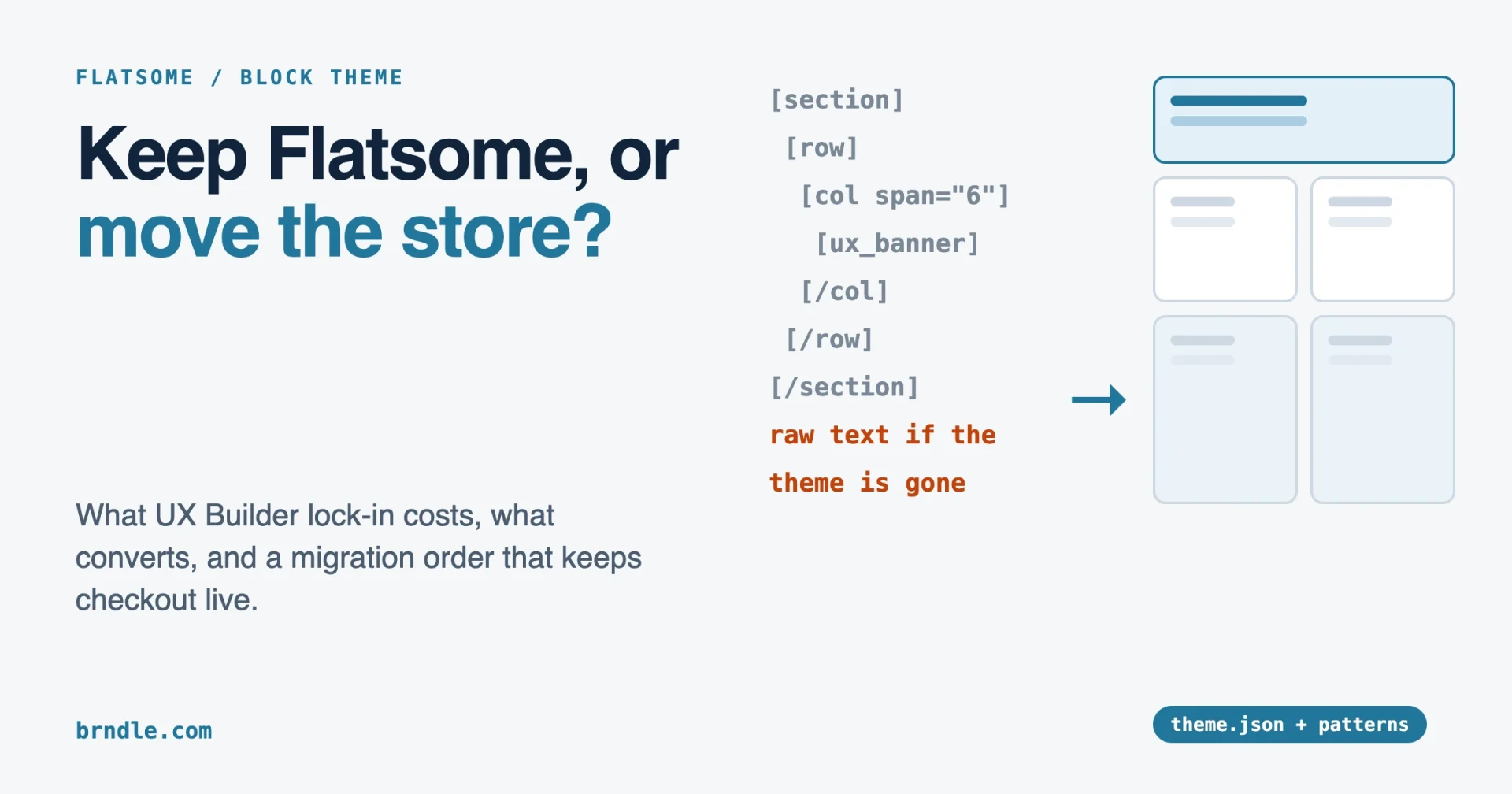
Symptom: after switching themes, pages that looked designed now show square brackets and attributes as text. Why: UX Builder stores layout as shortcodes in the page content. Flatsome’s own documentation, in its article on generating a shortcode, tells you to build an element in UX Builder, save, then “open the page in normal WP Editor” to see “the shortcode that the UX Builder generated”. The shortcodes are the page.
A shortcode only works while something has registered it, and a theme is one of the things that registers them. When the theme goes away, WordPress leaves the unknown tag as plain text. We checked that on a development site with WordPress 7.1.3, with theme and plugins skipped so no handler existed for the tags. Running this:
wp eval 'echo apply_filters( "the_content", "[section bg_color=\"#fff\"][row][col span=\"6\"]Hello store[/col][/row][/section]" );' --skip-plugins --skip-themesprinted the whole string back as paragraph text, brackets included:
<p>[section bg_color=”#fff”][row][col span=”6″]Hello store[/col][/row][/section]</p>The tag names above are the kind you will see in UX Builder content. They are examples, so run the inventory below on your own database to see the real ones. And that is the whole mechanism behind a bad theme switch: the words are still there and the layout is gone.
How do I find out how much of my store is built in shortcodes?
Count them before you touch anything. This read-only WP-CLI script scans posts, pages, products and every other content type in batches of 200 by ID, so it stays safe on a store with thousands of items, and prints the most-used tags. It counts openers like [section; it does not know which tags are registered.
<?php
/**
 * Count shortcode tags used in content, in batches of 200 by ID (safe on large sites).
 * Usage: wp eval-file shortcode-inventory.php
 * Read-only.
 */
global $wpdb;

$tags   = array();
$posts  = 0;
$last   = 0;
$types  = array( 'revision', 'attachment', 'nav_menu_item', 'customize_changeset', 'oembed_cache' );
$not_in = "'" . implode( "','", array_map( 'esc_sql', $types ) ) . "'";

do {
	$rows = $wpdb->get_results(
		$wpdb->prepare(
			"SELECT ID, post_type, post_content FROM {$wpdb->posts}
			 WHERE ID > %d AND post_type NOT IN ($not_in) AND post_status IN ('publish','draft','private','pending')
			 ORDER BY ID ASC LIMIT 200",
			$last
		)
	);
	foreach ( $rows as $row ) {
		$last = (int) $row->ID;
		$posts++;
		if ( preg_match_all( '/\[([a-z][a-z0-9_-]*)[\s\]\/]/i', $row->post_content, $m ) ) {
			foreach ( $m[1] as $tag ) {
				$key          = strtolower( $tag );
				$tags[ $key ] = ( $tags[ $key ] ?? 0 ) + 1;
			}
		}
	}
} while ( count( $rows ) === 200 );

arsort( $tags );
WP_CLI::log( "Scanned $posts items." );
foreach ( array_slice( $tags, 0, 25, true ) as $tag => $n ) {
	WP_CLI::log( sprintf( '%6d  [%s]', $n, $tag ) );
}
We ran it on a development site with 40 content items. It printed “Scanned 40 items.” and one tag, a gamification plugin’s shortcode, which is the output you want from a clean site. We also tested the regular expression on a sample string with [section], [row], [col], , [products] and [ux_banner], and it counted each once, plus a stray [x] from ordinary text, so expect some noise from square brackets in normal writing. Read the top of the list: tags that belong to WordPress (gallery, caption) or WooCommerce (products, woocommerce_cart) are not your problem. Tags that belong to the theme are.
Fix: know the count, then work through it on a staging copy. Prevention: on the next project, build page structure out of blocks and patterns, so layout lives in the content format WordPress itself understands.
What converts to blocks, and what do you rebuild?
Text converts. Products, orders, customers and categories belong to WooCommerce and do not care about the theme. Layout does not convert. There is no button that turns a UX Builder page into a block page, and the old tags are not blocks. WordPress does have a Classic block that holds old content, and you can use it as a holding pen for text you have not rebuilt yet, but the design shortcodes inside it will not render without the theme that registered them. See the WordPress documentation on the Classic block.
We went through the same exercise for an Elementor page in Page Builder to Block Theme: What Converts, What You Rebuild, where converting a 26-widget page showed what survives. The pattern is the same for Flatsome.

This mapping is ours. We built it from Flatsome’s documentation and from how block themes work, and we did not test it against a Flatsome install.
| In Flatsome | In a block theme | Work |
|---|---|---|
| Section, row, column layout | Group, Columns and Grid blocks, saved as a block pattern | Rebuild |
| Banner and slider elements | Cover block for a static banner; a slider plugin if you need motion | Rebuild |
| Product grids and carousels | WooCommerce’s Product Collection block | Rebuild |
| Reusable UX Blocks and Flatsome Studio layouts | Patterns and template parts | Rebuild |
| Custom product page layout (built from a UX Block) | The Single Product template in the Site Editor | Rebuild |
| Theme Options for colours and fonts | theme.json and the Styles panel | Rebuild |
| Mega menu | Navigation block, plus a plugin or custom pattern if you need a mega layout | Check |
| Variation swatches, catalog mode, size-guide lightbox | Plugins or small snippets | Replace |
| Products, orders, customers, categories, posts | Unchanged. They live in WooCommerce and WordPress | Stays |
Flatsome’s own documentation names several of these features: the how-to articles cover custom product pages (built from a “Block”), Flatsome Studio, variation swatches, mega menus and a size-guide lightbox, and the ThemeForest listing names a “Catalog Mode Option”. Those are theme features, and a block theme will not carry them for you.
A starter theme.json from your old design
Pull your colours and fonts out of the old Theme Options and put them somewhere that outlives any one theme. This is a minimal, valid starting point that we parsed to check it is well-formed JSON. Replace the placeholder values with yours.
{
  "$schema": "https://schemas.wp.org/trunk/theme.json",
  "version": 3,
  "settings": {
    "color": {
      "palette": [
        { "slug": "brand",   "name": "Brand",   "color": "#d26e4b" },
        { "slug": "ink",     "name": "Ink",     "color": "#1a1a1a" },
        { "slug": "surface", "name": "Surface", "color": "#fafaf8" }
      ]
    },
    "typography": {
      "fontFamilies": [
        { "slug": "body", "name": "Body", "fontFamily": "system-ui, sans-serif" }
      ]
    },
    "layout": { "contentSize": "720px", "wideSize": "1200px" }
  },
  "styles": {
    "color": { "background": "var(--wp--preset--color--surface)", "text": "var(--wp--preset--color--ink)" }
  }
}
Name colours by role (brand, ink, surface) and not by shade, so a rebrand changes one value. Our post on turning a Tailwind theme into theme.json goes into why.
Planning a Flatsome move and want a second opinion?
Our studio plans block theme migrations for WooCommerce stores: the inventory, the staging order and the cut-over plan. Send us the numbers from the inventory script above and we will tell you what we would rebuild first.
How do I move without taking the store offline?
The rule is simple: the live store keeps its theme until step seven. Everything before that happens on a copy.

1. Inventory
Run the shortcode script above. Add a second list: every plugin that hooks into the theme, every page that uses a custom product layout, every menu with a mega layout. The changelog is a hint about where those hooks are. Recent Flatsome releases mention integrations with composite products, variation swatches and an Instagram feed element, so check whether your store uses them.
2. Clone
Make a staging copy with real products and real orders, not a demo import. A store with 40 products behaves differently from one with 4,000, and filters, pagination and category pages are where block templates surprise you. Keep outgoing email switched off on the clone.
3. Choose the block theme on staging
Pick on evidence. Install two candidates, and check each against the same short list: does the Single Product template exist and can you edit it, do the shop and category templates exist, do cart and checkout work, is it keyboard-usable, does it ship theme.json with a palette you can edit. Our block theme test list for WordPress 7.2 is a good checklist, and Reading Purple shows how WooCommerce’s own starter block theme is laid out.
The WooCommerce documentation is clear on one thing: the Site Editor route to product pages needs a block theme. It says you “use the Site Editor to change the layout of your product pages when your store uses a block theme”, and that if Appearance > Editor is unavailable, you should check whether your active theme is a block theme. By default, product pages use the Single Product template, which you edit under Appearance > Editor > Templates. See Customizing Your Product Pages.
4. Shell: theme.json, header, footer, menus
Start with the parts every page shares. Put the palette and fonts in theme.json, rebuild the header and footer as template parts, and recreate your menus. If you need a mega menu, decide now whether it is a plugin or a pattern.
5. Store: product, shop, cart and checkout
Rebuild the Single Product template in the Site Editor, then the shop and category templates. Then test the cart and checkout. WooCommerce made its Cart and Checkout blocks the default for new stores in version 8.3, and the developer announcement says the shortcode versions “will continue to be available” for existing stores with customised flows. An existing store is not switched automatically. The same announcement tells extension authors to declare whether a plugin is compatible, so check each checkout-related plugin you use. See Cart and Checkout Blocks: Becoming the Default Experience and the Cart and Checkout blocks status page.
Place a real test order on staging through each payment method before you move on.
6. Pages: home and landing pages as patterns
Rebuild pages in order of traffic. Take your analytics top ten and do those first. Build each distinct layout once as a pattern, so a home page, a collection page and a campaign page become variations of one set of parts, not twenty separate designs.
If your landing pages are the part that hurt most, this is where a block library helps. Brndle, our free theme, ships 14 server-rendered Gutenberg blocks for landing pages (hero, features, pricing table, comparison table, FAQ and more) with no page builder. We say plainly where it fits: Brndle is built on Sage and Acorn with Blade templates, so it is not a block theme, and its WooCommerce support covers gallery and wrapper styling. We would not choose it as the template system for a large store. For landing and content pages it is worth a look.

7. Cut over, and keep a way back
Switch on a quiet hour. Keep the Flatsome theme installed and updated for a few weeks, so if something is wrong you can switch back and fix it on staging. After cut-over, check three things the same day: place a test order, compare your top URLs, and read the error log.
For the URL check, keep a list of your top pages in a file and compare the status codes before and after:
while read -r u; do
  curl -s -o /dev/null -m 15 -w "%{http_code} %{url_effective}\n" -L "$u"
done < urls.txt
We ran it against three test URLs: it printed 200 for a good one, 404 for a missing one and 200 after following a redirect to the HTTPS address, which is the output you read: anything that is not 200 on a page that used to work needs an answer.
What breaks in the move?
- Theme-built features. Swatches, catalog mode, mega menus and custom product layouts leave with the theme, as the table above shows. Decide the replacement before cut-over.
- Plugins that hook the theme. Anything that assumed Flatsome’s markup or scripts may need a setting change or an update.
- Raw shortcodes on pages you forgot. The inventory finds them. Old posts and draft pages are where they hide.
- Template overrides. If a child theme overrides WooCommerce templates, those overrides are classic PHP templates and do not carry across to a block theme.
- Checkout plugins. Extensions that change the checkout may not work with the Cart and Checkout blocks. Each one should declare whether it does.
- Look and feel. Spacing, fonts and button styles will not match to the pixel. Set the tokens in
theme.jsonfirst and adjust from there.
Will the store be faster afterwards?
It may be, since a block theme tends to ship less layout code. We did not measure it for Flatsome, so we will not put a number on it. Measure your own store before and after, on the same pages, on a phone, and judge by what your customers experience: product page load, add to cart, checkout.
What is the best Flatsome alternative: which block theme should a store move to?
Choose by what your store needs and test on staging, not by a list. The questions that decide it: does the theme ship a Single Product template and shop templates you can edit, does it support the Cart and Checkout blocks, does it use theme.json for colours and type, and how often is it updated. WooCommerce’s own starter block theme is a useful reference even if you do not pick it. For landing pages on a store, a block library or patterns gives you the sections Flatsome’s UX Builder did.
Common questions
Is Flatsome a block theme?
No. Flatsome is not a block theme: its design is controlled through its own theme options and UX Builder. The ThemeForest listing says it is “Gutenberg Optimized”, and the changelog mentions UX Builder showing Gutenberg HTML blocks as content blocks, but layout is still built in UX Builder.
Can I convert UX Builder pages to blocks automatically?
Not that we know of, and we found nothing in Flatsome’s documentation that says you can. Text moves, layout tags do not. Plan to rebuild layout as patterns.
Will I lose my products and orders?
No. Products, orders and customers belong to WooCommerce. Changing theme does not touch them, though you should still take a backup first.
How long does a move take?
It depends on how many distinct layouts you have, not how many pages. Ten templates and patterns rebuilt carefully serve a store of a thousand pages. The inventory gives you the first honest number.
Is Flatsome safe to keep running?
Yes, if you keep it updated. It has had security fixes recently, which shows the maker responds, and it is why you should apply updates promptly.
Do I need a developer?
For a small store with a few templates, you can do much of it in the Site Editor yourself. For a large catalogue, custom checkout or heavy customisation, bring one in.
Want a hand with the move, or a free block library for landing pages?
Our studio runs block theme migrations for WooCommerce stores. If your pain is landing pages, Brndle is free and GPL, and the source and release zip are on GitHub.
Where to start this week
Run the inventory on a staging copy. Write down the top ten pages by traffic and the plugins that touch the theme. Then decide: if the numbers say your layout is mostly a handful of templates, the move is smaller than it feels. If they say nearly every page is a custom UX Builder layout, stay until you have a reason to rebuild. Either answer is a good one, and both are better than finding out on the live site.