Page Builder to Block Theme: What Converts, What You Rebuild
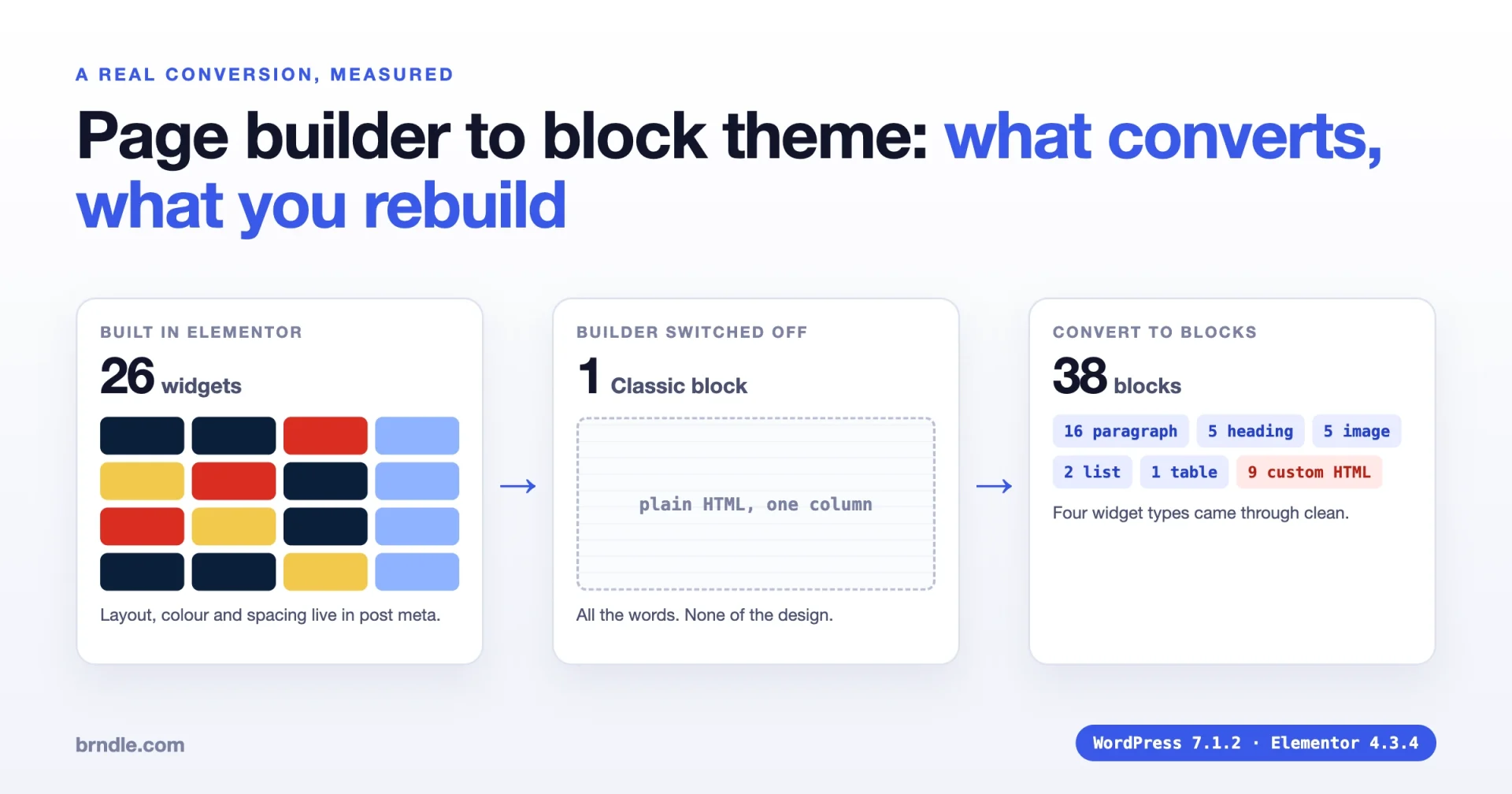
Moving a site off a page builder and onto a block theme is a rebuild, with a head start on the text. Your words, links, images and tables come across. Your layout, colours, spacing and every interactive widget do not. We tested this on a real page instead of repeating it from memory: one Elementor page with 26 widgets, switched off, then run through the block editor’s own Convert to blocks. This post shows exactly what came out the other side, widget by widget, and how to plan the work so the rebuild lands in theme.json and block patterns instead of in a pile of Custom HTML blocks.
The short version of the result: one Classic block became 38 blocks. Twenty-nine were core blocks, though many of the paragraphs held the mashed remains of widgets. Nine were Custom HTML holding stray icons, an iframe and a dead button. Nothing in the layout survived.
What we tested, and what we did not
The test ran on 12 October 2026 on a local WordPress 7.1.2 install with Elementor 4.3.4 (the free plugin) and the Hello Elementor theme. The block theme on the other side was Twenty Twenty-Five 1.5.
We built a home page for an invented plumbing business. It had a dark hero section with a heading, text and a red pill button, a two-column row with an image and an icon list, a row with a counter, a testimonial and a star rating, an FAQ built from the accordion, toggle and tabs widgets, and a last section with a video, a map, an image box, an icon box, a progress bar, an alert, social icons, an HTML widget holding a table, a shortcode, a gallery and a carousel. That is 26 widgets of 24 types inside flexbox containers. The page was saved through Elementor’s own document save routine, so the plugin wrote its data the way it does when you press Update.
Limits you should know before you rely on this:
- One builder. We did not test Divi, WPBakery, Beaver Builder or Bricks. Builders that store shortcodes in the content behave differently, and worse, when switched off.
- Free widgets only. Elementor Pro forms, popups, loop grids and Theme Builder headers and footers were not in the test.
- One page, built by script from classic widgets. A site with years of hand edits, add-on packs and custom CSS will be messier.
- No converter plugin was tested. We looked for one, and that is covered below.

Where does a page builder keep your page?
In two places, and only one of them is the real page. This is the fact the whole migration turns on.
Elementor keeps the page in a post meta row named _elementor_data. It is JSON: a tree of containers and widgets, each with its settings. On our test page that row was 6,055 characters. Here is the hero container and its button, copied from the database:
{"background_background": "classic", "background_color": "#0B1F3A",
 "padding": {"unit": "px", "top": "80", "right": "20", "bottom": "80", "left": "20"}}

{"text": "Book a visit", "link": {"url": "/book/"}, "align": "center",
 "background_color": "#D92D20",
 "border_radius": {"unit": "px", "top": "30", "right": "30", "bottom": "30", "left": "30"}}
Elementor also writes a second copy into post_content, the normal WordPress content field. That copy is plain HTML with the wrappers and classes removed. On our page it was 7,689 characters and began like this:
<h1>Plumbing repairs in Leeds, booked in a minute</h1>
<p>We fix leaks, boilers and blocked drains. <strong>Same-day visits</strong> across Leeds.
Read our <a href="/prices/">price list</a>.</p>
<ul><li>Gas Safe registered</li><li>12-month guarantee</li></ul>
<a href="/book/"> Book a visit </a>
The plain copy is what you see when the builder is switched off, and it is what the block editor gets to work with. Notice what is already gone: the dark background, the padding, the centring, the red pill. The button is a bare link. Everything that made it a design lives only in the JSON.
A block theme stores things the other way round. The page is block markup inside post_content, and the design decisions live in theme.json, in template parts and in patterns. There is no shared structure between the two formats, which is why no button turns one into the other.
What happens when you switch the builder off?
Every word stays. The page stops being a design and becomes a long document, and a few things break in ways that are easy to miss.
We deactivated Elementor and activated Twenty Twenty-Five without touching the page.

| What we measured | With Elementor | Elementor off |
|---|---|---|
| Page height at 1,280 px wide | 3,779 px | 14,636 px |
| Text content | All there | All there |
| Columns and rows | 4 multi-column rows | One column |
| Counter | 1,200+ | 0 + |
| Video | Player | The YouTube address as plain text |
| Icons | Small, inline | 11 inline SVGs, the largest 645 px wide |
Six things in that result deserve a closer look, because each one will be on your site too.
- Icons balloon. The plain copy keeps each icon as an inline SVG with no width. Without the builder’s stylesheet, an SVG fills its container. That is why the page grew to almost four times its height.
- Animated numbers store their start value. The counter’s saved HTML holds 0, because the script counts up to 1,200 in the browser. Switch the script off and your “1,200+ jobs completed” reads “0 +”. The real number is still in the JSON.
- Tabs flatten into nonsense. Our two tabs became “Boilers Drains Boilers Service and repair. Drains Unblocking and CCTV survey.” in a run of loose text.
- Widget defaults leak. The progress bar showed the words “Web Designer” next to our title. That is Elementor’s default inner text, which we never set and never saw on the live page.
- Some images point into the plugin folder. The testimonial had no photo, so the saved HTML references Elementor’s placeholder image inside
wp-content/plugins/elementor/. Deactivated, it still loads. Delete the plugin and it is a broken image. - The page template setting stays behind. The page still carried
_wp_page_template = elementor_header_footerand seven other_elementormeta rows. They do nothing while the plugin is off, and they are clutter you will want to remove at the end.
The map kept working, because it is an ordinary iframe. The shortcode kept working, because WordPress runs shortcodes in content with or without the builder.
What does Convert to blocks do with it?
It does an honest job on anything that was plain HTML to begin with, and it has no idea what to do with the remains of a widget.
Open the page in the block editor with the builder off and the whole thing is one Classic block. The block toolbar offers Convert to blocks. We ran the same raw-content handler that button uses and saved the result.
| Block type | Count | Came from |
|---|---|---|
| Paragraph | 16 | Text, plus the flattened remains of 9 widgets |
| Custom HTML | 9 | Accordion and toggle icons, the map iframe, the icon box icon, the alert’s close button |
| Heading | 5 | Heading widgets, image box and icon box titles |
| Image | 5 | Image, image box, gallery, carousel, testimonial placeholder |
| List | 2 | The text list and the icon list |
| Table | 1 | The table inside the HTML widget |
That is 38 blocks at the top level. The page was still 11,659 pixels tall, because the oversized icons were now sitting in Custom HTML blocks.

Widget by widget
| Elementor widget | After Convert to blocks | Verdict |
|---|---|---|
| Heading | Heading block, correct level | Converts |
| Text editor | Paragraph and List blocks, bold and links kept | Converts |
| Image | Image block with its caption | Converts |
| HTML (a table) | Table block | Converts |
| Image box | Image, Heading and Paragraph blocks, stacked | Content converts, layout gone |
| Icon box | Custom HTML (the icon), Heading, text merged into the next paragraph | Tidy by hand |
| Button | A paragraph containing a link | Rebuild as a Button block |
| Icon list | List block, icons dropped, empty line breaks in each item | Tidy by hand |
| Accordion, Toggle | Two Custom HTML icons per item, then question and answer as paragraphs | Rebuild |
| Tabs | Tab titles and content run together in paragraphs | Rebuild |
| Counter, Testimonial, Star rating | Merged into two paragraphs, counter reads 0 | Rebuild |
| Progress bar, Alert | Merged into one paragraph with the leaked default text, plus a dead close button | Rebuild or drop |
| Video | The address as text inside a paragraph, not an embed | Rebuild as an Embed block |
| Google Maps | Custom HTML with the iframe | Works, keep or replace |
| Social icons | A paragraph with a link and an inline SVG | Rebuild as Social Icons |
| Shortcode | The shortcode as text in a paragraph | Move into a Shortcode block |
| Gallery, Carousel | Single Image blocks | Rebuild as a Gallery |
| Divider, Spacer | Nothing | Gone, which is fine |
| Containers, columns, backgrounds, padding | Nothing | Rebuild all of it |
Count it up and four widget types came through cleanly. Two more carried their content. Everything else is hand work, and the containers that held the design left no trace at all.
Is there a tool that converts a page builder layout to blocks?
Not one we can point you to. We searched the WordPress.org plugin directory on 12 October 2026 for “elementor to gutenberg” and for “elementor blocks converter”. The first page of each search returned Elementor itself, Elementor add-on packs and unrelated plugins. No converter.
The public accounts we read agree with what our test showed:
- An agency case study published by WP Engine about WebDevStudios describes the same starting point we saw: after the switch, the content sits “without style and layout as one block”. Their answer was an in-house command line framework that turns Elementor widgets into core blocks, after which their team restyles the blocks to match the design. It is described as their own tool for client projects.
- A theme author’s guide from Themnific, dated August 2026, says converter plugins do not do the job reliably “on anything past a simple page”, and treats the move as a rebuild.
So the people doing this at scale wrote their own scripts, and they read the JSON, not the plain copy. That is the right instinct. The JSON knows that the hero is navy with 80 pixels of padding, that the button is red with a 30 pixel radius, that the counter ends at 1,200 and which video the player pointed at. If you are migrating more than a handful of pages, a script that reads _elementor_data and writes block markup for your five or six most common widgets will repay the day it takes. For a ten-page site, rebuild by hand.
What should you rebuild first?
Start with an inventory, because the widget count decides the plan. This WP-CLI script reads every published page’s builder data and counts what is in it. We ran it on the test site with Elementor deactivated, so you can run it at any stage.
<?php
// Save as inventory.php and run: wp eval-file inventory.php
global $wpdb;

$rows = $wpdb->get_results(
	"SELECT pm.post_id, pm.meta_value
	 FROM {$wpdb->postmeta} pm
	 JOIN {$wpdb->posts} p ON p.ID = pm.post_id
	 WHERE pm.meta_key = '_elementor_data' AND p.post_status = 'publish'"
);

$counts = array();
$walk   = function ( array $elements ) use ( &$walk, &$counts ) {
	foreach ( $elements as $el ) {
		$type            = 'widget' === ( $el['elType'] ?? '' ) ? $el['widgetType'] : ( $el['elType'] ?? 'unknown' );
		$counts[ $type ] = ( $counts[ $type ] ?? 0 ) + 1;
		$walk( $el['elements'] ?? array() );
	}
};

foreach ( $rows as $row ) {
	$data = json_decode( $row->meta_value, true );
	if ( is_array( $data ) ) {
		$walk( $data );
	}
}

arsort( $counts );
printf( "%d pages with builder data\n", count( $rows ) );
foreach ( $counts as $type => $n ) {
	printf( "%4d  %s\n", $n, $type );
}
On our one test page it printed 7 containers, 3 headings and one of each other widget. On a real site the top of that list is your work order. If “heading”, “text-editor” and “image” make up most of it, you are in good shape. If the list is full of add-on widgets with names you do not recognise, budget for those first.
Map each widget to a core block
Every block named here is registered in a stock WordPress 7.1.2 install. We checked the block registry on the test site.
| Builder widget | Core block | Note |
|---|---|---|
| Container, section, column | Group (as Row, Stack or Grid) or Columns | Set spacing with blockGap and spacing presets, not Spacer blocks |
| Heading, text editor | Heading, Paragraph, List | Converts for you |
| Button | Buttons | Style once in theme.json, add a block style for variants |
| Image, gallery | Image, Gallery | |
| Accordion | Accordion | core/accordion |
| Toggle | Details | core/details |
| Tabs | Tabs | core/tabs |
| Video | Embed | Paste the address on its own line |
| Testimonial | Quote, or a Group pattern | |
| Social icons | Social Icons | |
| Divider | Separator | |
| Icon box, image box | A block pattern: Group, Icon or Image, Heading, Paragraph | One pattern replaces every copy |
| Shortcode | Shortcode | Check the plugin behind it still exists |
| Counter, progress bar, star rating, carousel, map | No core block | Use static content, a small block plugin, or drop it |
The last row is where you make design decisions, not technical ones. A counter that animates to 1,200 can be a large number in a Heading block. A star rating can be five characters. Ask whether the motion earned its place before you go looking for a plugin to bring it back.
Put the design in theme.json, not in each block
The trap in a rebuild is copying the builder’s habits: setting the navy background, the 80 pixel padding and the red pill by hand on every block, page after page. That gives you a block site with page-builder problems. Lift the values out of the JSON once and give them names.
{
  "version": 3,
  "settings": {
    "color": {
      "palette": [
        { "slug": "navy",   "color": "#0B1F3A", "name": "Navy" },
        { "slug": "signal", "color": "#D92D20", "name": "Signal red" }
      ]
    },
    "spacing": {
      "spacingSizes": [
        { "slug": "section", "size": "clamp(3rem, 8vw, 5rem)", "name": "Section" }
      ]
    }
  },
  "styles": {
    "elements": {
      "button": {
        "color":  { "background": "var(--wp--preset--color--signal)", "text": "#ffffff" },
        "border": { "radius": "30px" }
      }
    }
  }
}
With that in place, the hero is a Group block with the Navy background and the Section padding preset, and every button on the site is the red pill without anyone styling it. Change the red once and the whole site follows. We wrote more about naming tokens so that people and tools both follow them in a design system an AI agent can follow.
Then turn each repeated layout into a block pattern: the hero, the two-column “image and reasons” row, the FAQ, the call-to-action band. A ten-page brochure site usually needs six to ten patterns. Build the patterns first and the pages go quickly, because each page becomes a matter of inserting patterns and pasting the converted text into them.
What order should the work go in?
Work on a copy, keep the builder active on the live site until the end, and move page by page.
- Clone the site to staging. Take a full backup of the live database first. The JSON in post meta is your only record of the design.
- Screenshot every page at desktop and phone width while the builder is still on. You will want these when you cannot remember how a section looked.
- Run the inventory. List the widgets, the add-on plugins behind them, and anything from the paid version: forms, popups, header and footer templates.
- Set up the block theme. Palette, type scale, spacing presets and button styles in
theme.json. Header and footer as template parts. - Build the patterns for your repeated sections.
- Convert one page. Switch the builder off on staging, open the page, run Convert to blocks, delete the Custom HTML leftovers, then move the surviving text into your patterns.
- Check that page against its screenshot, at 390 pixels wide as well as desktop. Check every number, because counters will read 0.
- Repeat for the rest, most-visited pages first.
- Replace the extras. Forms need a form plugin or a block. Popups need a decision about whether you still want them.
- Go live, then clean up. Only after sign-off, remove the builder and its leftover data.
Page addresses do not change in any of this. A page keeps its slug whichever editor built it, so you should need no redirects. If your builder created its own archive or landing page addresses, list those and check each one after the switch.
Cleaning up afterwards
The _elementor meta rows and the page template setting stay in the database after the plugin is gone. Remove them once you are sure you will not go back. These two commands are the standard WP-CLI way to do it. We did not run them as part of this test, so try them on staging first and keep the backup.
# Reset the page template on pages that still point at a builder template
wp post list --post_type=page --meta_key=_wp_page_template \
  --meta_value=elementor_header_footer --format=ids \
  | xargs -n1 -I% wp post meta delete % _wp_page_template

# See what builder data is left before you delete anything
wp db query "SELECT meta_key, COUNT(*) FROM $(wp db prefix)postmeta
  WHERE meta_key LIKE '\_elementor%' GROUP BY meta_key"
What goes wrong, and how do you fix it?
The page is suddenly enormous
Symptom. Giant check marks, plus signs or arrows down the page.
Check. Look for Custom HTML blocks containing <svg>.
Fix. Delete them. They are decoration from icon lists and accordions. If you want icons back, use the Icon block or a list style in your theme.
Prevent. Expect it. Every icon the builder drew will arrive this way.
A statistic reads zero
Symptom. “0 +” where a figure used to be.
Check. Search the converted page for “0” beside a label. Compare with your screenshots.
Fix. Retype the number from the screenshot, or read ending_number from the page’s builder data.
Prevent. Add “check every number” to the per-page checklist. This is the error most likely to reach a live site unnoticed.
Strange words appear that you never wrote
Symptom. Text such as “Web Designer” in the middle of a section.
Check. It sits near where a progress bar, counter or testimonial used to be.
Fix. Delete it. It is the widget’s default text, saved into the plain copy even though the live page hid it.
Prevent. Read every converted page top to bottom once. Do not skim.
An image breaks after you delete the plugin
Symptom. Broken image icons a week after launch.
Check. Search the database for image addresses containing /plugins/elementor/.
Fix. Replace them with real images from the media library, or remove them.
Prevent. Run that search before you delete the plugin, not after.
The header and footer vanished
Symptom. Pages have content but no site header.
Check. The old header was a builder template. The paid version stores those as their own content type, and they do not exist for the block theme.
Fix. Rebuild them as template parts in the Site Editor.
Prevent. Build the header and footer in step 4, before you convert any page.
How long does it take?
We are not going to give you hours per page from a one-page test. What the test does tell you is where the time goes. Converting text is minutes. Deleting leftovers is minutes. The hours are in three places: setting up theme.json and patterns properly, rebuilding anything interactive, and checking each page against its screenshot. The first of those is a one-off cost that makes every later page faster, so it is the wrong place to save time.
A fair way to estimate your own site: convert your most complex page end to end, time it, and treat that as the ceiling per page.
Questions about moving from a page builder to a block theme
Will I lose my content if I deactivate the page builder?
With Elementor, no. The text, links and images stay in the page as plain HTML, and the builder’s data stays in the database until you delete it. Reactivate the plugin and the page is back as it was. Builders that store shortcodes leave those shortcodes visible in the text, so test yours on a copy.
Can I move one page at a time on the live site?
Yes, if you keep the builder active and switch to a theme that works with both. The cleaner route is to do the whole rebuild on staging and switch once, because a block theme’s header, footer and styles apply to every page from the moment you activate it.
Do I have to use a block theme, or can I keep my classic theme and just use blocks?
You can use blocks in a classic theme. You give up the Site Editor, template parts and most of what theme.json does for global styles. If the point of the move is to own the design in one file, go to a block theme.
Will the site be faster afterwards?
Usually the pages get lighter, because the builder’s wrappers, stylesheets and scripts are gone. We did not measure speed in this test, so we will not put a number on it. Measure your own before and after.
What about search rankings?
Addresses, titles and text stay the same, which is most of what matters. Check after launch that headings kept their levels, that images kept their alt text, and that no page lost a section in the rebuild.
What should you do next?
Clone your site, run the inventory script, and convert one page. An afternoon of that tells you more about your migration than any estimate. If you are choosing the block theme at the same time, our block theme test list for WordPress 7.2 covers what to check in a theme before you commit to it, and the Purple teardown shows how a well-organised theme.json is laid out.