How to Generate Critical CSS for Block Themes to Improve First Contentful Paint
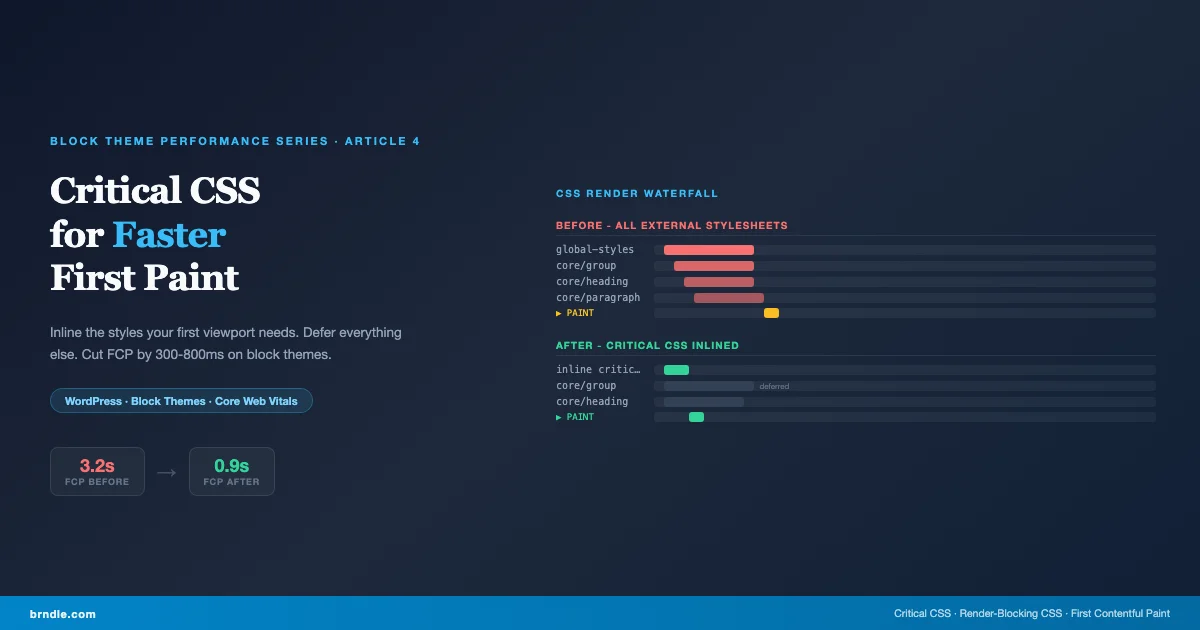
First Contentful Paint (FCP) measures how long a visitor waits to see any content on screen. For most block themes, the dominant factor in a slow FCP is not JavaScript, not database queries, and not image size – it is the order in which CSS loads. WordPress block themes generate substantial stylesheets: global styles, block-specific stylesheets, plugin styles, and theme.json-derived variables. The browser must download and parse all render-blocking CSS before it can display a single character. Critical CSS – a small subset of styles needed to render above-the-fold content – changes this. When inlined directly in the HTML head, critical CSS lets the browser paint immediately without waiting for any external stylesheet. This article explains what critical CSS means specifically for block themes, how to extract it, how to inline it, and how to measure the FCP improvement.
What critical CSS means for block themes
Critical CSS is not a new concept, but it requires a specific mental model when applied to block themes. In a classic WordPress theme, critical CSS typically meant extracting the styles for the header, hero section, and first paragraph. Block themes complicate this in two ways. First, the “above the fold” area is determined by which blocks appear in the template – and that varies by template (home, single, archive) and even by post. Second, WordPress splits block styles aggressively: each block type has its own stylesheet, and since WordPress 6.1, block themes can load block stylesheets only when a block actually appears on the page via the should_load_separate_core_block_assets filter. This means the set of stylesheets that must load before first paint changes per page.
Despite this complexity, the approach is tractable. The core insight is that a given template (say, single.html) renders a predictable set of blocks above the fold: the site header, a featured image or hero area, the post title, and the first paragraph. The critical CSS for this template is the union of the minimal styles for those blocks plus any global variables (colors, fonts, spacing presets) referenced in those styles. You extract this once per template, inline it, and defer everything else.
A 2024 Chrome UX Report analysis found that 62% of WordPress sites in the “poor” FCP range were blocked by render-blocking CSS for more than 800ms. Inlining 8-12KB of critical CSS and deferring the rest typically reduces this blocking time to under 50ms.
How WordPress loads block styles
Before extracting critical CSS, it helps to understand exactly how WordPress generates and enqueues block styles for block themes. When WordPress renders a block theme page, it does the following: processes the active template (e.g., single.html), converts it to blocks, renders each block via render_block(), and during rendering enqueues the block-specific stylesheet for any block that appears on the page. The result is a set of <link> tags in the page head, each pointing to a specific block’s stylesheet. Understanding this structure also helps when you migrate widget areas to block theme template parts – each new block type you introduce to a template potentially adds a new stylesheet to the render-blocking set.
The global styles stylesheet – the CSS derived from theme.json settings and styles, including custom properties for colors, font families, font sizes, and spacing – is always inlined as a <style> tag in the head. This is important for critical CSS planning: global style variables are already effectively “inlined” by WordPress. What remains as external <link> tags are block-specific stylesheets (blocks/core/paragraph.css, blocks/core/heading.css, etc.) and any additional plugin or theme stylesheets registered via wp_enqueue_style.
For a typical block theme single post page, the render-blocking stylesheets include: the theme’s main stylesheet (if it has one), block stylesheets for core/group, core/template-part, core/post-title, core/post-content, core/image, core/paragraph, and core/heading. Depending on the template, this can be 8-15 separate HTTP requests, each blocking the render. On a connection with 50ms RTT, that is potentially 400-750ms of blocking time before the browser has all the CSS it needs to begin layout.
Extracting critical CSS from block output
Extracting critical CSS requires a headless browser that renders the page, computes which styles apply to elements in the first viewport, and returns that subset. The standard tool is critical by Addy Osmani, which uses Puppeteer under the hood. It loads a URL, measures the viewport, and extracts all computed CSS rules that affect elements visible in that viewport. Here is a Node.js script that extracts critical CSS for each block theme template and saves it as a named file:
Run this script against a local copy of your block theme (using a local development environment like LocalWP or Lando) rather than against production. Running it against production exposes you to rate limiting and sends synthetic traffic to your analytics. The script generates one CSS file per template: critical-home.css, critical-single.css, critical-archive.css, and critical-page.css. These files belong in assets/ in your theme directory.
The output CSS typically runs 8-15KB uncompressed. Strip comments and collapse whitespace to bring it below 12KB – this keeps the inline <style> block from becoming a significant HTML payload. Minification is straightforward: remove comment blocks (/* ... */), collapse consecutive whitespace to single spaces, and trim leading/trailing whitespace. The PHP function in the next section does this automatically before inlining.
Viewport size and mobile-first extraction
The critical CSS you extract depends on the viewport size you use during extraction. For block themes that serve both mobile and desktop, you need to choose a viewport size strategy. The most common approach is to extract at the mobile viewport (390px wide, 844px tall for iPhone 14) because mobile has the smallest above-the-fold area and the most constrained performance budget. CSS rules that apply on mobile generally also apply on desktop due to how block themes handle responsive layouts (clamp-based fluid widths rather than breakpoint-heavy CSS). If your theme has significant desktop-only above-the-fold blocks (hero with large grid layout visible only on wide viewports), also extract at 1200×800 and merge the two sets.
Block themes often use CSS custom properties from the global styles inline block to control colors, fonts, and spacing. These custom properties must be present in the critical CSS or the inlined styles will have empty values. The critical extraction tool should capture them from the :root and body selectors. Verify the extracted critical CSS includes the relevant --wp--preset--color--* and --wp--preset--font-size--* variables before deploying.
Inlining critical CSS in block themes
Once you have the extracted critical CSS files, the next step is to inline them per template. In a block theme, there is no header.php to modify – the template structure is entirely controlled by block template files (templates/single.html, etc.). Critical CSS inlining happens via a wp_head action that checks the current template context and outputs the appropriate <style> block. Here is the PHP implementation:
This function runs at wp_head priority 1, which places the inline <style> block at the very top of the head – before WordPress outputs any other styles. This is intentional: the critical CSS must be parsed before any other stylesheet declaration so that the browser can begin layout immediately. If the critical <style> comes after <link> tags for block stylesheets, the critical CSS is irrelevant because the browser was already blocked by those links.
The function also handles the case where a template-specific critical CSS file does not exist, falling back to a generic critical.css that covers the most common above-the-fold elements shared across templates (site header, navigation, body typography). Start by creating this generic file first, then add template-specific files as you extract them per template.
Per-template critical CSS for maximum precision
The generic fallback approach works but delivers the best results when combined with per-template critical CSS. Here is a more granular implementation that maps WordPress template conditionals to specific critical CSS files:
This approach generates the tightest possible inline CSS for each page type. The homepage template often has a large hero block that is not present on single posts, so its critical CSS includes the hero’s image sizing, overlay, and heading styles. The archive template needs the card grid layout and thumbnail sizing. The single post template needs the post header, featured image, and first-paragraph typography. Keeping these separate prevents any one template’s critical CSS from inflating the others.
Deferring non-critical stylesheets
Inlining critical CSS solves the first-paint problem, but if the non-critical stylesheets still load as render-blocking <link> tags, you have not gained anything – the browser still blocks on them before painting. The companion step is to convert render-blocking <link> tags to non-blocking loads using the media trick:
The technique: change the media attribute of non-critical stylesheet link tags to media="print". This is the same output-filtering approach used in block filters and hooks for modifying block behavior – hooking into WordPress output filters to transform the final HTML without touching core code. Print stylesheets load asynchronously (they do not block rendering). Add an onload handler that switches the media back to "all" once the stylesheet has loaded. Add a <noscript> fallback for browsers without JavaScript. The net effect is that the stylesheet loads without blocking the render, and is applied once it arrives.
In WordPress, the cleanest way to apply this transformation is via the style_loader_tag filter, which fires for each registered stylesheet and lets you modify the generated <link> HTML. Apply the transformation only to stylesheets that are not already critical (which are now inlined). The WordPress Performance plugin takes this approach for the stylesheets it defers. If you are using the WordPress Performance plugin on your block theme, it may already be deferring non-critical stylesheets – check its settings under Performance – Object Cache and Performance – CSS before implementing a custom solution to avoid duplication.
Automating critical CSS generation for block themes
Manual critical CSS extraction works for a stable theme but becomes a maintenance burden when the theme changes. Each time you add a new block to the above-the-fold area of a template, the critical CSS is out of date. Automating the extraction as part of your build process prevents drift.
The extraction script from earlier can be added to an npm build script in your theme’s package.json. Set the target URLs to point to your local development environment rather than production. If you use LocalWP, the URL follows the format http://yoursite.local. Run the extraction script before committing the critical CSS files to the repository. This way, any developer who modifies an above-the-fold template block also runs the extraction and commits the updated critical CSS as part of the same PR.
For teams that use continuous integration, add the extraction to the CI pipeline as a pre-commit or pre-push hook. This requires a headless Chromium installation in the CI environment, which GitHub Actions and CircleCI both provide via standard actions. The extraction takes 30-60 seconds per template – a reasonable overhead for the performance guarantee it provides.
One edge case to handle in automation: critical CSS extraction fails gracefully when the development server is not running. Add a check in the npm script that pings the local URL before running the extraction, and exits with a warning (not an error) if the server is unavailable. This prevents blocking the build pipeline on developer machines that do not have the local environment running.
Measuring FCP improvement
The primary metric to track is First Contentful Paint (FCP), measured via Lighthouse or the Chrome User Experience Report (CrUX). Run a Lighthouse audit before and after implementing critical CSS, using the same simulated throttling settings (typically “Mobile, slow 4G” for the most meaningful comparison). The expected improvement for a block theme switching from all-external stylesheets to inlined critical CSS is 300-800ms on FCP, depending on how many render-blocking stylesheets were previously present and the connection speed.
WebPageTest provides more granular data than Lighthouse for critical CSS debugging. Look at the waterfall view and find the “Start Render” marker. Before critical CSS, Start Render should be blocked until all CSS requests complete. After critical CSS, Start Render should happen very early – typically within 200-400ms – because the browser now has everything it needs to paint the above-the-fold content from the inline <style> block alone. If Start Render is still delayed after implementing critical CSS, check whether any non-critical stylesheets are still loading as render-blocking resources.
| Implementation state | FCP (4G mobile) | Start Render | Blocking CSS time |
|---|---|---|---|
| All external stylesheets | 2.4s – 3.8s | 1.8s – 3.2s | 600ms – 1400ms |
| Critical CSS inlined, rest blocking | 1.2s – 2.0s | 0.4s – 0.8s | 0ms (paint happens first) |
| Critical CSS inlined, rest deferred | 0.9s – 1.6s | 0.3s – 0.6s | 0ms |
The table above represents typical ranges for block themes with 8-15 external stylesheets. Results vary based on hosting speed, CDN configuration, and the complexity of above-the-fold content. The combination of inlining critical CSS and deferring non-critical CSS delivers the largest improvement – the two techniques work together and should be deployed together.
Critical CSS and the WordPress Performance plugin
The WordPress Performance plugin (part of the Performance Lab project, developed by the WordPress core performance team) includes an “Optimization Detective” module and a “Speculative Loading” module that intersect with critical CSS. As of WordPress 6.7, the Performance plugin does not generate critical CSS automatically – that extraction step still requires a build tool like the critical npm package. What the plugin does provide is non-blocking stylesheet loading (the style_loader_tag deferral approach) and LCP image preloading, which complements a manual critical CSS implementation.
If you are using the Performance plugin alongside a manual critical CSS implementation, configure the plugin’s stylesheet deferral to exclude your critical CSS file handle. The critical CSS file is already inlined – deferring it would create a duplicate load. Use the plugin’s exclude list to mark your critical CSS handle as exempt from deferral. This coordination between the plugin’s automatic deferral and your manual inlining gives you the best of both approaches without conflicts.
The Performance plugin’s “Optimization Detective” module learns which resources are needed for LCP on each page and generates fetchpriority="high" attributes for the LCP image. This works alongside critical CSS: once the critical CSS has painted the above-the-fold layout, the fetchpriority attribute ensures the LCP image loads as fast as possible for the LCP score. These two optimizations – critical CSS for FCP and fetchpriority for LCP – together address the two most impactful Core Web Vitals for block themes, as covered in the lazy loading article at the start of this series.
Common mistakes with critical CSS in block themes
Several implementation patterns cause critical CSS to fail silently or deliver no improvement. The most common is inlining critical CSS at a late priority in wp_head. If you hook at priority 10 (the default), WordPress has already output <link> tags for block stylesheets at priority 8. The critical CSS appears after those links, meaning the browser still blocked on the earlier stylesheets before it reached the inline styles. Always hook at priority 1 or lower.
Second: using critical CSS that includes all viewport sizes without checking the current template. If you inline a single large critical CSS file that covers home, archive, and single templates simultaneously, the inline block grows to 30KB or more – larger than most of the block stylesheets you were trying to avoid. Template-specific files, as shown in the per-template implementation, solve this. Keep each template’s critical CSS under 15KB after minification.
Third: forgetting to update critical CSS after changing above-the-fold template parts. This is the most common drift scenario. You update the site header to use a different navigation layout, ship the template change, but the critical CSS still has the old header styles. The browser paints correctly (because the full stylesheet eventually loads), but the FCP improvement from critical CSS is reduced because some of the inlined styles no longer match what is in the viewport. Set a reminder to re-extract critical CSS after any template modification that affects above-the-fold blocks.
Fourth: applying critical CSS on admin pages and the WordPress login screen. The wp_head action fires on admin pages too. Add a check for is_admin() at the start of the function and return early if true. Admin pages have their own stylesheet set that is completely different from the front-end, and inlining front-end critical CSS into admin head causes style conflicts in the admin interface.
Integration with the full performance series
Critical CSS is the fourth optimization in this block theme performance series. The full picture, applied in order, looks like this: native lazy loading and script deferral (article 1) address LCP and TBT; size-adjusted fallback fonts and CLS-stable image dimensions (article 2) address CLS; local font hosting with preloading (article 3 on optimizing web fonts via theme.json) addresses FOUT and FOIT; and critical CSS with stylesheet deferral (this article) addresses FCP and Start Render. The final article covers a complete rendering audit workflow – using Query Monitor to measure which blocks are slow, Chrome DevTools to profile paint timing, and WebPageTest to validate the composite improvements across all four optimizations.
If you implement only one optimization from this series, implement critical CSS. It addresses the most visible performance problem – the blank white screen before first paint – and has the largest direct impact on the FCP metric that Google uses in its Core Web Vitals assessment. Combined with the CLS elimination techniques from article 2, critical CSS gives you a complete “time to paint” optimization story that addresses both the first meaningful paint and the layout stability of that first paint.
Critical CSS implementation checklist
- Install
criticalnpm package and configure extraction script with local dev URLs - Extract critical CSS for each major template: home, single, archive, page
- Verify extracted CSS includes global style custom properties from
:rootandbody - Extract at mobile viewport (390px) as baseline, add desktop if needed
- Minify extracted CSS (strip comments, collapse whitespace) to under 15KB per template
- Place critical CSS files in
assets/directory within theme - Add
wp_headhook at priority 1 to inline template-matched critical CSS - Add
is_admin()early-exit to prevent inlining on admin pages - Implement non-blocking stylesheet loading for non-critical stylesheets
- Add extraction script to npm build pipeline with local dev server check
- Measure FCP before and after in Lighthouse at “Mobile, slow 4G” throttling
- Confirm Start Render in WebPageTest waterfall is below 500ms after implementation
- Re-extract and commit after any template change affecting above-the-fold blocks
Work with us on block theme performance
We help agencies and product teams implement critical CSS, optimize Core Web Vitals, and build high-performance block themes for WordPress. If your block theme has an FCP above 2.5s or a Start Render time above 1.5s on mobile, the critical CSS approach described in this article is the fastest path to improvement. Contact us to discuss a focused performance audit – we typically cover critical CSS extraction, non-critical deferral, font preloading, and CLS elimination as a single engagement, with measurable Lighthouse score improvements within the first sprint. For teams that need a full Astro static build rather than a WordPress performance fix, Wbcom Designs provides Astro static site development as a service.